
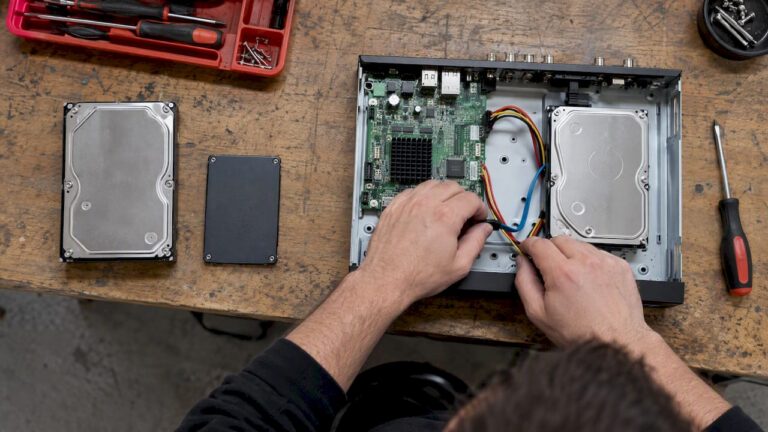
For the video itself, use a surveillance-rated hard drive (HDD). It costs far less per terabyte and is built for nonstop recording. An SSD earns its place in a smaller role: running the recorder’s operating system, or handling analytics-heavy work. Putting an SSD in every bay gets you speed your cameras cannot use, at a price most properties should not pay.
Below, we explain why, how much storage a New Jersey home or business needs, and which mistakes cause drive failures in the field.
TL;DR
- Choose a surveillance-grade HDD for continuous recording. It offers the best cost per terabyte and is made for 24/7 writing.
- SSDs are quieter and respond faster, but large-capacity SSDs cost many times more per terabyte, and recorded video rarely needs that speed.
- Never use a desktop drive in an NVR. Drives without surveillance firmware are not built for constant multi-stream writing.
- Size storage from bitrate, camera count and retention days. Eight 4 MP cameras at 30 days need roughly 10 TB.
- Slow playback usually points to your network, not your drive.
Table of Contents
- What an NVR actually asks of its drive
- HDD vs SSD for NVR: how they compare
- Where SSDs do make sense in an NVR system
- Can you put any drive in any NVR?
- How much storage does your NVR need?
- Our perspective: spend on the drive that fits the job
- Choosing by property type
- Common mistakes with NVR storage
- Let us size the system for your property
- FAQ
- Sources
What an NVR actually asks of its drive
A network video recorder (NVR) takes streams from IP cameras and writes them to disk around the clock. That workload is unlike a laptop’s. The drive is almost always writing and rarely reading. You only read when someone scrubs back through footage to find an incident.
Seagate’s SkyHawk datasheet describes its surveillance drives as built for always-on workloads of 180 TB per year, and lists NVRs among the best-fit applications. Surveillance drives also use specialized firmware tuned for heavy writing across many camera streams. A standard desktop drive is tuned for short bursts of random reads and writes, which is a poor match.
That is why the question is less about which technology is better and more about which drive fits the job. Seagate itself frames it this way in its guide to hard drives and SSDs for video: the answer depends on the combination of storage that suits your use case and goals.
HDD vs SSD for NVR: how they compare
| Factor | Surveillance HDD | SSD |
|---|---|---|
| Cost per terabyte | Low | High, especially above 4 TB |
| Capacity in NVR bays | Large drives widely available | Large capacities are expensive |
| Built for 24/7 video writing | Yes, when surveillance-rated | Varies by model and endurance rating |
| Noise and vibration | Audible spin and seek | Silent |
| Timeline scrubbing | Good | Snappier |
| Power draw | Higher | Lower |
| Best role | Primary video storage | OS drive, analytics, small systems |
Cost per terabyte
This is the deciding factor for most buyers. Seagate points to the lower cost per gigabyte of hard drives as the reason they remain the economical choice for video. Video retention is a volume problem. If you want 30 or 60 days of footage from a dozen cameras, you are buying tens of terabytes, and the price gap between the two media multiplies with every terabyte.
Write endurance and reliability
Surveillance HDDs are rated for constant writing. SSDs wear as flash cells are rewritten, and a recorder writing continuously to a consumer SSD can use up its rated endurance much sooner than the same recorder would use up a surveillance HDD. If you do consider an SSD for video, check the manufacturer’s endurance rating (usually listed as terabytes written) against the amount of footage your cameras produce each year. Do not assume any SSD will last.
On the HDD side, the main risks are mechanical: vibration, heat and power loss. A properly ventilated rack or cabinet and a battery backup (UPS) do more for drive life than any choice of media.
Speed, and where it actually matters
SSDs are faster, and you can feel it when you scrub through a timeline. Users comparing the two on community forums often report the SSD feeling more responsive when jumping around recordings. But recording itself needs only modest throughput. Even a busy 4K system writes a small fraction of what a modern drive can sustain.
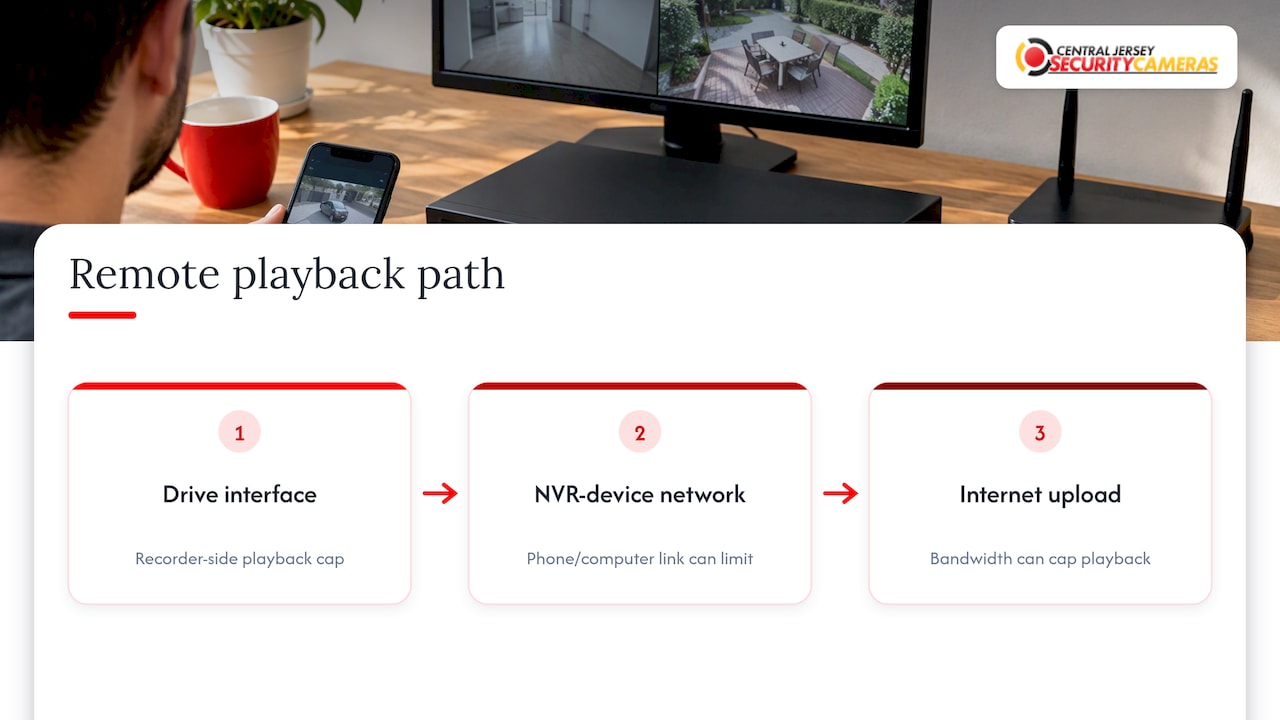
Speed claims also run into the rest of the chain. The recorder’s drive interface, the network between the NVR and your phone or computer, and your internet upload speed all cap what you experience. When a homeowner tells us remote playback is slow, the drive is rarely the culprit. A weak Wi-Fi link or limited upload bandwidth is far more common.
Noise and power
SSDs are silent and sip power. That matters if the recorder sits in a quiet office, a living space or a closet next to a bedroom. For most garages, server closets and utility rooms, the hum of a hard drive is not a problem.
Where SSDs do make sense in an NVR system
SSDs are not a gimmick in this field. They are growing quickly in specific roles. A Micron survey reported by a&s magazine found roughly a third of NVR users have adopted SSDs, often for system-level operations or AI-heavy edge computing, while hard drives still hold the bulk of the video.
Professional recording servers follow the same split. Axis’s Camera Station S1296 datasheet shows a recording server with multiple RAID configurations for video storage, reflecting the common pattern of fast storage for the system and capacity drives for footage.
An SSD is a reasonable choice when:
- The recorder is compact and holds few cameras. A two-to-four camera home system that keeps a short history may fit on a modest SSD.
- Silence matters more than capacity.
- The NVR runs analytics such as license plate recognition or object search, where quick random access helps.
- The manufacturer ships it that way. Some recorders are sold with flash storage built in. Follow the manufacturer’s supported drive list.
If you want the benefits of both, the usual approach is an SSD for the operating system and software, with HDDs for the footage.
Can you put any drive in any NVR?
No. Check three things before buying.
- Compatibility. Every NVR model lists a maximum capacity per bay and, often, supported drive models. TP-Link’s guidance on choosing a hard drive for its NVRs is a good example: recorders run around the clock, so the drive has to meet specific requirements.
- Surveillance rating. Look for drives marketed for video, such as Seagate SkyHawk or WD Purple. Drives meant for desktops use firmware designed for a different workload, and using them in an NVR risks dropped frames and early failure.
- Workload rating. Higher camera counts and AI features call for higher-rated drives. Seagate’s SkyHawk AI line, for example, is described as video-optimized for NVRs with AI at the edge.
If you also run multiple drives in RAID, buy matching models and keep a spare. RAID protects against one drive failing, but it is not a backup against theft, fire or someone deleting the recorder.
How much storage does your NVR need?
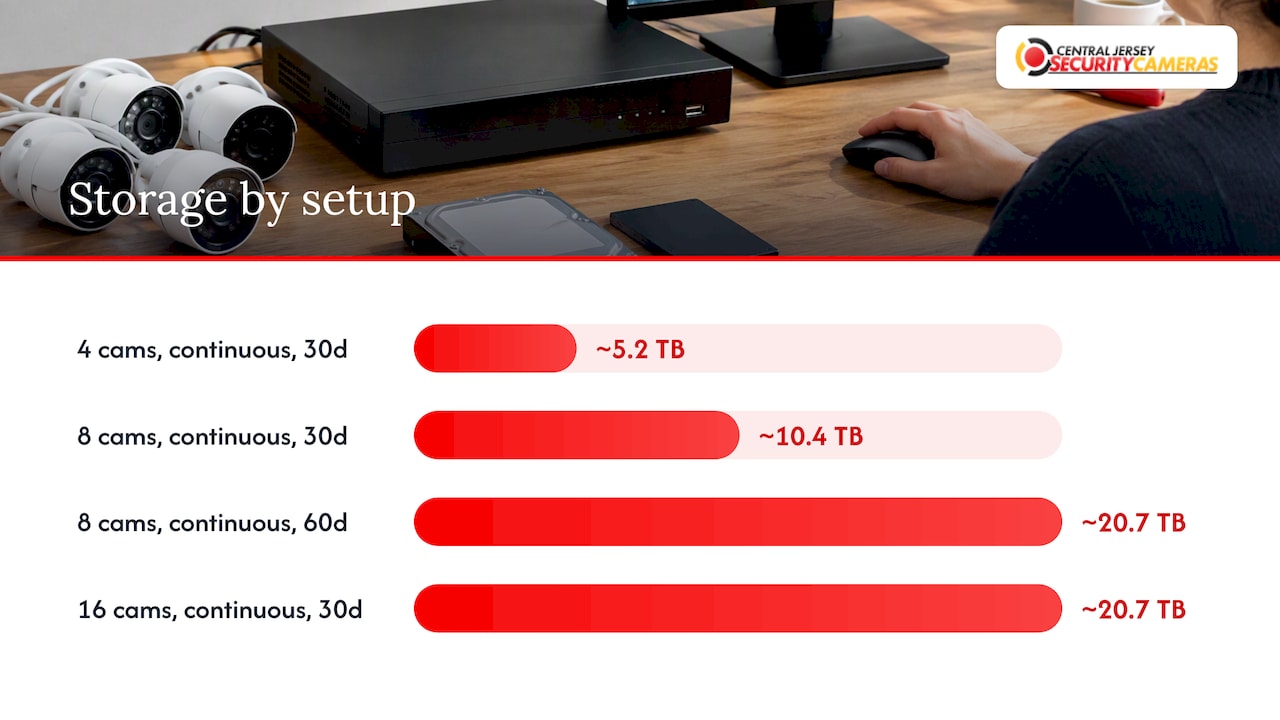
Storage depends on four things: how many cameras you have, the bitrate each one records at, whether you record continuously or only on motion, and how many days you must keep footage.
Here is the arithmetic. A camera streaming at 4 Mbps uses about 0.5 MB each second. Over a day, that is roughly 43 GB. Multiply by cameras and days:
| Setup | Assumed bitrate | Retention | Approximate storage |
|---|---|---|---|
| 4 cameras, continuous | 4 Mbps each | 30 days | about 5.2 TB |
| 8 cameras, continuous | 4 Mbps each | 30 days | about 10.4 TB |
| 8 cameras, continuous | 4 Mbps each | 60 days | about 20.7 TB |
| 16 cameras, continuous | 4 Mbps each | 30 days | about 20.7 TB |
These are our own calculations from the stated bitrate, not guarantees. Real bitrates vary with resolution, frame rate, codec (H.265 compresses better than H.264), lighting and scene activity. A busy parking lot at night will use more than a quiet side yard. Online tools such as this security camera storage calculator estimate that a single 4K camera recording nonstop at 30 fps uses about a terabyte in a week, so higher resolution raises these numbers fast.
To trim storage without losing coverage:
- Use H.265 if your cameras and NVR support it.
- Record on motion for low-traffic cameras, and continuously for entrances, cash areas and loading docks.
- Lower the frame rate on cameras watching static scenes.
- Use a secondary stream at lower quality for live viewing.
Also leave headroom. Aim for 15 to 20 percent more capacity than the math says, because bitrates spike at night and during busy periods.
Retention is a policy decision, not just a hardware one
How many days you keep footage depends on your risk, any contractual requirements and your insurance. Our guide to CCTV retention for installers and owners walks through typical 30 to 90 day benchmarks and how to write a policy. Settle that first, then buy drives to match it.
Our perspective: spend on the drive that fits the job
We design systems for homes, offices, warehouses, schools and industrial sites across Central New Jersey, and we keep seeing the same pattern. Owners ask whether they need an SSD because it sounds like an upgrade. Usually they do not.
What we see matter more in practice:
- Right-sized capacity. A recorder that overwrites footage in nine days when the owner expected thirty is a design failure, not a drive failure. We size storage from the actual camera layout and retention need during the free on-site evaluation.
- Surveillance-rated drives. Pairing a recorder with the right drive class protects you from dropped frames when you most need the footage.
- A healthy network. Before blaming storage for slow playback, we check cabling, switches and upload bandwidth.
- Clean power and airflow. A recorder in a hot closet will cook any drive.
Where an SSD helps, such as an NVR that runs plate recognition or a quiet residential install, we will say so and specify it. Where it does not, we put your budget into better cameras, better coverage and reliable HDD capacity.
— Tom
Choosing by property type
Home with 4 to 8 cameras. A surveillance HDD of a few terabytes is usually plenty for a couple of weeks to a month of footage. If the recorder lives in a living area and noise bothers you, ask about an SSD-based model with realistic capacity expectations. For help with a residential system, see our home security installation service.
Small business or office. You may need 30 to 60 days for disputes, insurance claims or HR reviews. Go for HDDs sized to that window, with a spare drive on the shelf.
Warehouse, school or industrial site. Many cameras, high resolution and long retention push you into RAID with several large HDDs. An SSD for the system drive can add responsiveness, but the footage belongs on capacity storage. Our commercial security installations team handles these larger designs and repairs.
Self-storage and multi-building sites. Camera counts and retention needs climb quickly, so plan storage before the cameras. Our self-storage camera system guide covers what those sites tend to require.
Common mistakes with NVR storage
- Installing a desktop drive because it was on sale. It may work for a few weeks and then fail.
- Mixing drive types in one RAID group.
- Ignoring the maximum capacity the NVR supports per bay.
- Skipping health checks. Look at the recorder’s drive status and alerts regularly. Plan to replace drives proactively as they age.
- Forgetting the UPS. Sudden power loss is hard on spinning drives and can corrupt recordings.
- Buying for speed when the real problem is a congested network.
If you want to explore recorder topics more deeply, our NVR and DVR help archive collects setup and troubleshooting articles.
Let us size the system for your property
If you would rather not do the bitrate math, we will do it for you. Central Jersey Security Cameras designs, installs and maintains custom camera systems for homes and businesses across Ocean, Monmouth, Middlesex, Mercer and Burlington counties. We offer free on-site evaluations, and our security camera installation service lists a one-time installation fee of $99. We specify the recorder, drives and retention to match what you need to protect.
FAQ
Is an HDD or SSD better for CCTV?
For storing continuous video, a surveillance-rated HDD is the better value because of its lower cost per terabyte and its design for constant writing. An SSD is better when silence, low power or fast response matter more than capacity. Many professional systems combine both, with an SSD for the system and HDDs for footage.
Can I use an SSD in an NVR?
Often yes, if the NVR supports it. Check the manufacturer’s compatibility list and the maximum capacity it accepts. Also check the SSD’s endurance rating, since constant video writing wears flash storage.
Is HDD still worth it for surveillance?
Yes. Micron’s survey found SSD adoption growing in NVRs, but hard drives still carry most of the recorded video. The cost per terabyte is the reason.
How big should my NVR hard drive be?
Multiply camera count by each camera’s daily data use and by your retention days, then add 15 to 20 percent headroom. As a rough example, eight 4 MP cameras recording continuously at 4 Mbps need about 10 TB for 30 days. Your installer can confirm the actual bitrates.
Why is my NVR playback slow if I have a good drive?
The bottleneck is commonly the local network or the upload speed at the recorder’s location, especially when viewing remotely from a phone. Test the connection before replacing drives.
Sources
- Seagate SkyHawk surveillance drive datasheet
- Seagate: Hard drives and SSDs for video and image applications
- Seagate SkyHawk AI datasheet
- a&s magazine: Micron survey on SSDs and M.2 in NVR storage
- Axis Camera Station S1296 datasheet
- TP-Link: How to choose a suitable HDD for VIGI NVR
- Security camera storage calculator