
For most 1080p cameras, start at roughly 2 to 4 Mbps in H.264, use VBR, then record your busiest scene and raise the bitrate only if you see blocky edges on moving people or vehicles. For 4K (8 MP), start around 4 to 6 Mbps in H.264. Everything below explains where those numbers come from, how to adjust them, and what they do to your storage and network.
TL;DR
- Bitrate is the data a camera produces per second. Higher means more detail in motion, but also more network load and more disk space.
- Good starting points: 1080p at 1.5 to 2.5 Mbps (H.264) and 4K at 4 to 6 Mbps (H.264). Manufacturer references for 1080p at 30 fps run as high as about 4 Mbps.
- Use VBR for most scenes and set a sensible maximum. Choose CBR only when your network demands a fixed, predictable data flow.
- H.265 can cut bitrate by 25% to 50% at similar quality, if your recorder supports it.
- Test by recording the real scene, then calculate storage and total bandwidth for every camera before you commit.
Table of Contents
- What bitrate actually controls
- Recommended CCTV bitrate settings by resolution
- VBR vs CBR for CCTV
- Codec, frame rate and noise: the other levers
- A repeatable way to test your settings
- Bitrate, storage and how long you keep footage
- Is 100 Mbps enough for security cameras?
- Common bitrate mistakes
- Perspective
- Let us set it up properly
- FAQ
- Sources
What bitrate actually controls
Bitrate is the amount of data a camera sends or records each second, usually written in Kbps or Mbps. Western Digital’s surveillance white paper explains that it rises with resolution, frame rate and video quality, and that after compression it roughly equals the data written to your drive.
Think of it as a budget. Resolution and frame rate decide how much picture the camera has to describe. Bitrate decides how much of that description it is allowed to keep. Sony’s support guidance frames it as resolution times frame rate times image quality: if you raise resolution or frame rate and leave the bitrate where it was, image quality drops.
That is why a brand-new 4K camera can look worse than your old 1080p one. The sensor is capable, but the encoder is starved. The picture shows up as smearing, blocky patches or a frozen frame when something moves.
Recommended CCTV bitrate settings by resolution
There is no single correct number, but there are reliable starting points. The figures below come from manufacturer and vendor guidance. Treat them as the first value you test, not the final one.
| Camera setup | Codec | Suggested starting bitrate | Source |
|---|---|---|---|
| 720p, 30 fps | H.264 | 2,048 Kbps | Clinton Electronics |
| 1080p, 30 fps | H.264 | 4,096 Kbps | Clinton Electronics |
| 1080p, 30 fps | H.264 | 4,000 kbps as an ideal reference | Sony |
| 1080p, 15 to 30 fps | H.264 | 1.5 to 2.5 Mbps | VXG |
| 1080p, 15 to 30 fps | H.265 | 1 to 2 Mbps | VXG |
| 4K (8 MP), 15 to 30 fps | H.264 | 4 to 6 Mbps | VXG |
| 4K (8 MP), 15 to 30 fps | H.265 | 3 to 5 Mbps | VXG |
Notice the spread for 1080p, from about 1.5 Mbps to about 4 Mbps. The low end describes the lowest rate that still looks clean in a calm scene. The high end leaves headroom for busy ones. Sony is explicit that real requirements depend on the subject, so the answer is to record your own scene and look at it.
How to choose within the range
- Quiet indoor hallway or office, stable lighting: the low end of the range is usually enough.
- Driveway, parking lot, street frontage, loading dock: go toward the high end. Moving vehicles, trees, rain and headlights all add complexity.
- Faces and license plates: do not economize here. Aggressive compression can make faces or objects unrecognizable, which the Department of Homeland Security’s video security handbook notes as the trade-off of squeezing more video onto a drive.
VBR vs CBR for CCTV
This is the choice people ask about most, and for most installations the answer is short: use VBR.
VBR (variable bitrate) lets the camera spend more data when the scene is busy and less when nothing is happening. VXG recommends it for most surveillance applications for exactly that reason. A hallway at 3 a.m. costs almost nothing. A delivery truck backing in gets the bits it needs.
CBR (constant bitrate) holds the stream at a fixed rate. According to Clinton Electronics, it suits strict bandwidth limits or situations that need a consistent data flow, such as a narrow wireless link or a remote site on a capped connection.
| VBR | CBR | |
|---|---|---|
| Data use | Rises and falls with the scene | Fixed |
| Image quality in busy scenes | Better, up to your maximum | Can degrade when the scene exceeds the fixed rate |
| Storage planning | Estimate from the average and set a cap | Simple and predictable |
| Best for | Most homes, shops, offices, lots | Tight links, fixed-bandwidth requirements |
The setting that makes VBR safe
Pure VBR with no ceiling can spike. Many cameras let you set a maximum bitrate alongside a quality level. Set the maximum to the upper end of your chosen range, so one windy afternoon cannot flood the network or use a week of storage in a day. When your recorder or cabling is the limit, a capped VBR gets you most of CBR’s predictability with better quality.
Codec, frame rate and noise: the other levers
H.265 vs H.264
H.265 compresses more efficiently. A Fortinet white paper puts the gain at 25% to 50% over H.264, with lower bandwidth and storage at similar quality. The same paper notes that this comes with more encoding complexity and a need for newer hardware. Before switching, confirm that your recorder and viewing software decode H.265 smoothly, not just record it.
In practice: if the cameras and the NVR both support H.265, use it and take the savings, either as lower bitrate or as the same bitrate with a cleaner picture.
Frame rate
Frame rate multiplies the load. Doubling it with a fixed bitrate means each frame gets about half the data. Many scenes do not need 30 fps. A door, a counter or a storage room is often fine at a lower rate, which frees bitrate for sharper frames. For the reasoning, see our guide to security camera frame rate. Faster scenes such as a road, a gate or a license plate lane are the exception.
Noise at night
Noise is expensive. The Fortinet paper points out that if noise is left uncontrolled, video can need very high bandwidth or show compression artifacts, and that Digital Noise Reduction helps. A low-light camera with good lighting and sensible noise reduction will look cleaner at a lower bitrate than a noisy one at a high bitrate. Often the fix for a grainy night image is better light, not more bits.
Main stream and sub stream
Most IP cameras output two streams. The main stream is recorded and gets your quality bitrate. The sub stream is a low-resolution, low-bitrate feed used for live grids and phone viewing. Keep the sub stream small so a phone on cellular data does not choke, and spend your bitrate on the recorded main stream.
A repeatable way to test your settings
Sony’s advice is simple: determine the bitrate by recording the subject with the camera. Lower bitrates tend to show block noise, especially on moving parts. Here is the routine we would follow on a new install.
- Set a starting point. Pick resolution, codec and frame rate first, then take the starting bitrate from the table above.
- Choose VBR with a cap. Put the maximum at the top of your range.
- Record the hardest moment. Walk through the frame, drive a vehicle through it, and capture it at the time of day with the worst light.
- Review in the recorder’s playback, not just live view. Pause on a face or plate. Look for blocks, smearing and dropped frames.
- Adjust one thing at a time. Raise the bitrate, lower the frame rate or improve the lighting. Record again.
- Lock it in and recalculate storage. A higher bitrate changes your retention days, so redo the math below.
The goal is the lowest bitrate with no visible artifacts on the thing you need to identify, not the lowest bitrate that looks acceptable on a calm afternoon.
Bitrate, storage and how long you keep footage
Bitrate converts directly into disk space. EtherWAN notes that 8 Mb/s equals 1 MB/s, so a stream recorded continuously at 8 Mb/s produces about 60 MB per minute.
Worked example
Take one camera at 4 Mbps recording around the clock:
- 4 Mbps is 0.5 MB per second
- 0.5 MB x 86,400 seconds is about 43.2 GB per day
- Over 30 days, that is about 1.3 TB per camera
With 8 cameras at the same rate, 30 days of continuous recording needs roughly 10.4 TB, before leaving any free space on the drives. Cut each camera to 2 Mbps and that halves to about 5.2 TB. These are our own arithmetic from the conversion above, so they assume a steady rate. A VBR stream averages lower than its cap in quiet scenes, so your real number is usually smaller, which is why a few days of measured usage beats a guess.
Why compression and recording mode matter
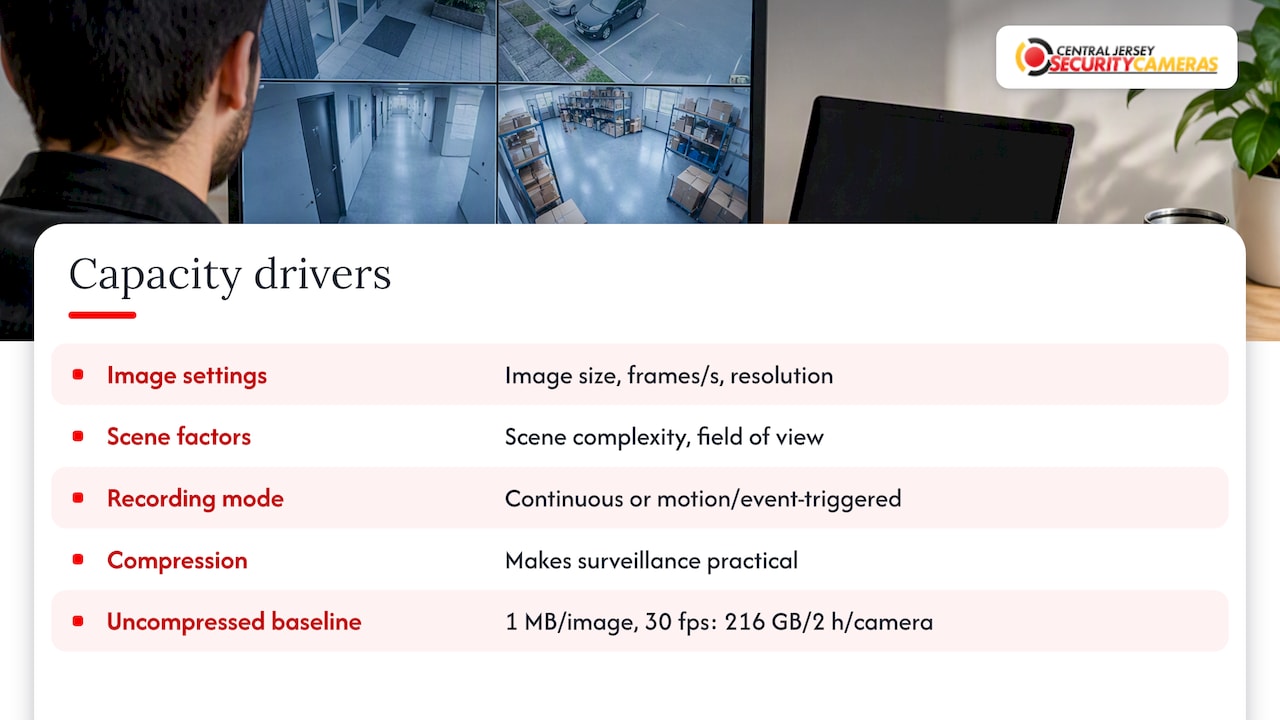
The DHS handbook lists the factors that set required capacity: image size, frames per second, compression, resolution, scene complexity, field of view, and whether recording is continuous or triggered by motion or events. It also gives a stark baseline: uncompressed video at 1 MB per image and 30 images per second needs 216 GB for two hours from one camera. Compression is what makes surveillance practical.
Codec generation matters too. In one Seagate test scenario, a single continuous 20 fps, 704×480 stream filled a 1 TB drive in 42 days with MPEG-4 and 66 days with H.264. Your numbers will differ, but the direction holds.
Recording only on events is another lever. Pelco’s guidance says that alarm- or analytics-triggered recording can save disk space and reduce throughput compared with continuous recording. For a business, a common approach is continuous recording at a moderate bitrate, with a higher-quality profile during motion.
Drive endurance also counts. Bitrate, hours of video stored and storage endurance together determine required capacity and storage lifetime, so use drives rated for constant writing, not ordinary desktop disks.
Is 100 Mbps enough for security cameras?
Often yes, for a small system, but add it up instead of assuming. The sizing method from NETGEAR’s surveillance networking guide is average bandwidth per camera multiplied by the number of cameras. The switch and uplink must then exceed that total.
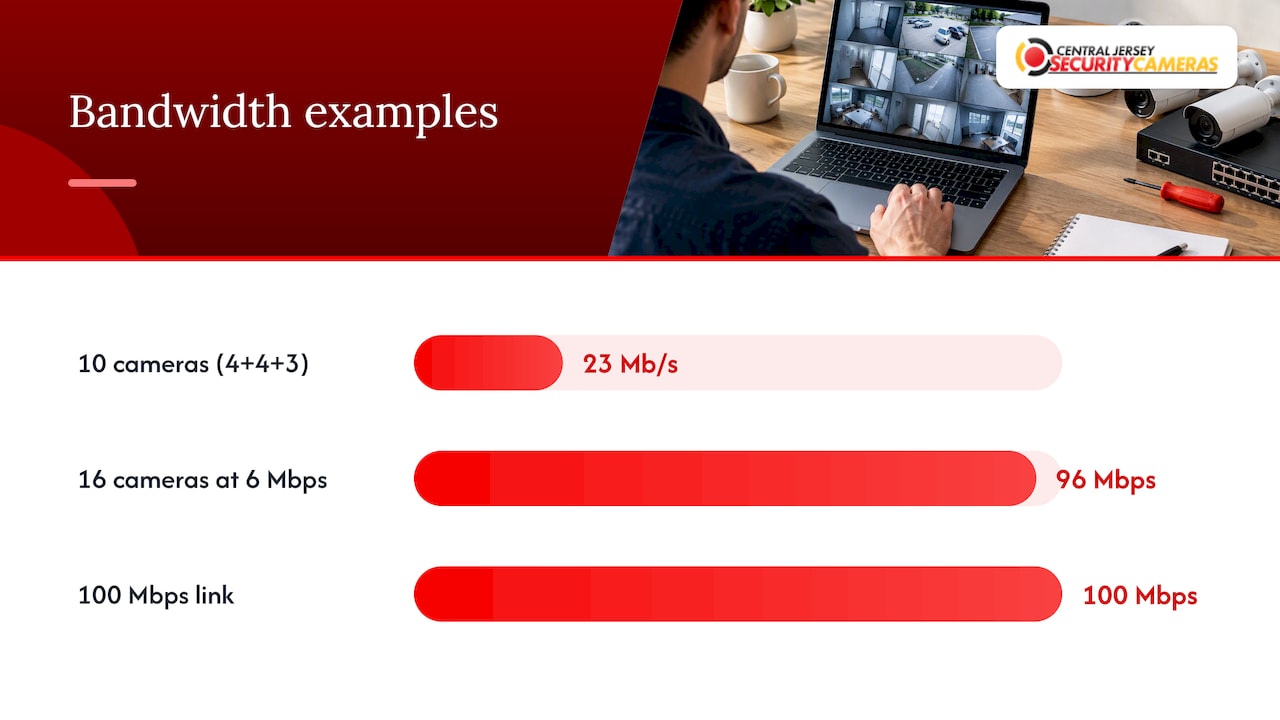
IPVM reports that individual IP camera streams commonly sit in the single-digit megabits per second, and its example of 10 cameras in 4, 4 and 3 Mb/s groupings totals 23 Mb/s. So a 100 Mbps link handles that with room to spare.
Where it goes wrong:
- Many 4K cameras on one switch. Sixteen cameras at 6 Mbps is 96 Mbps, which is too close to the ceiling on a 100 Mbps link. Use gigabit uplinks.
- Live viewing on top of recording. Each person watching a main stream adds load. Use sub streams for grids.
- Shared office networks. Video competes with everything else. A dedicated switch or VLAN for cameras keeps both sides healthy. Our notes on commercial camera cybersecurity cover why separating the camera network matters for security as well as speed.
For business owners planning a larger system, this guide to business security camera systems adds more on choosing and securing one. If cost is the question, our page on small business security camera pricing shows what typical systems run.
Common bitrate mistakes
- Maxing out every camera. Setting every stream to its highest value wastes storage on scenes that never needed it.
- Raising resolution without raising bitrate. The picture gets larger but not better.
- Judging by live view. Live view often uses a different stream than the recording. Check playback.
- Ignoring the recorder’s input limit. NVRs have a total incoming bandwidth ceiling. Add your cameras’ maximum bitrates and compare it with the spec.
- Skipping night tests. Noise and IR glare are where bitrate settings fail.
Perspective
We install a lot of systems where the cameras are fine and the settings are factory defaults. A 4K camera running at a default bitrate on a busy driveway gives you a sharp still frame and a smeared car, and that is the footage you need most when something happens.
Our approach is to design the system as a whole: where each camera sits, what it needs to identify, how many cameras share a switch, how many days the owner wants to keep, and how big the drives must be to deliver that. Then we set bitrate camera by camera, so the entrance with plates and faces gets more than the back wall.
That is the practical difference between a professionally designed system and a box of cameras you configure yourself. Someone has to run the test recordings, size the storage and revisit the numbers when you add a camera. We offer free on-site evaluations so we can do that against your actual property, not a spec sheet.
Tom
Let us set it up properly
If you would rather not calculate bitrate, storage and switch capacity yourself, we design, install and maintain camera systems for homes and businesses across Central New Jersey, including Ocean, Monmouth, Middlesex, Mercer and Burlington counties. Our New Jersey security camera installation carries a one-time installation fee of $99.

We also cover home security installation and commercial security installations, including repairs on existing systems. Ask for a free on-site evaluation and we will tell you what your property needs.
FAQ
What is the recommended bitrate for CCTV?
It depends on resolution, codec and scene. For 1080p, vendor guidance runs from about 1.5 to 2.5 Mbps in H.264 up to roughly 4 Mbps as a high-quality reference. For 4K, 4 to 6 Mbps in H.264 is a common starting range. Record your real scene and adjust from there.
How much bitrate is good for recording?
Enough that faces, plates and moving objects stay clear in playback, and no more. Start at the middle of the range for your resolution, test your busiest scene, and raise it only if you see blockiness. Remember each increase cuts your retention time unless you add storage.
Is VBR or CBR better for CCTV?
VBR is better for most installations because it spends data where the scene needs it and saves it when nothing moves. Set a maximum so it cannot spike. CBR makes sense when a link or a requirement calls for a fixed, predictable data rate.
Is 100 Mbps enough for security cameras?
For a small system, usually. Multiply the average bitrate by the camera count and compare it with your switch and uplink capacity. Ten cameras at a few Mbps each total well under 100 Mbps, but a dozen or more 4K cameras can approach it, so move to gigabit.
Does H.265 really need less bitrate?
Yes, by roughly 25% to 50% at similar quality according to Fortinet’s white paper. Your cameras and recorder must both support it, and viewing software must decode it well.
Sources
- Recommended bitrate settings, VXG Help Center
- Bitrate Options, Clinton Electronics
- What bitrate should I use when monitoring images, Sony
- Understanding IP Surveillance Camera Bandwidth, Fortinet
- Managing Bandwidth for IP Surveillance Networks, EtherWAN
- Choosing the Right Capacity and Endurance for Edge Surveillance Systems, Western Digital
- Video Security Systems Technology, U.S. Department of Homeland Security
- Video Surveillance Storage, Seagate
- Managing Bit Rate Usage on Pelco IP Cameras
- Bandwidth Fundamentals For Video Surveillance, IPVM
- Networking Solutions for IP Surveillance, NETGEAR
- Business Security Cameras: How to Choose and Secure a System