
Two-factor authentication (2FA) adds a second check, usually a one-time code sent to your phone, on top of your password when you log in to the app or website that shows your cameras. Turn it on for every account that can view or control your cameras. It is the quickest fix for the most common way camera systems get breached: a stolen or reused password.
This guide explains what 2FA does for a camera system, which methods you can choose, how to set it up, what to do if you lose your phone, and which other settings matter just as much. It is written for New Jersey homeowners and business owners who use remote viewing.
TL;DR
- 2FA asks for a temporary code in addition to your password, so a stolen password alone no longer opens your camera feed.
- Use an authenticator app or text message, tied to your own mobile number, not to a spare email account.
- Save your backup codes the day you enable it. Losing your second factor can lock you out for good on some platforms.
- 2FA protects the account. Strong unique passwords, firmware updates, a firewall and limited access to the recorder protect everything else.
- Professionally installed systems need these settings planned at install. Our free on-site evaluation is a good moment to cover them.
Table of Contents
- What 2FA does for a security camera account
- Which 2FA method to choose
- How to turn on 2FA, step by step
- What if your system does not support 2FA?
- Beyond 2FA: the settings that matter just as much
- 2FA for businesses: a few extra rules
- If you lose your second factor
- Our perspective
- Get a system designed with account security in mind
- FAQ
- Sources
What 2FA does for a security camera account
A camera is only as private as the login behind it. When you view your cameras on your phone, you are signing in to an account that sits on the internet. Anyone who gets that email and password can watch, and sometimes listen, from anywhere.
2FA closes that gap. After you enter your password, the system asks for something only you have, typically a six-digit code. Consumer Reports describes it as a temporary one-time passcode delivered by text message, email or phone in addition to your password, and one of its security experts called it an easy second layer that can stop some hackers’ attacks immediately.
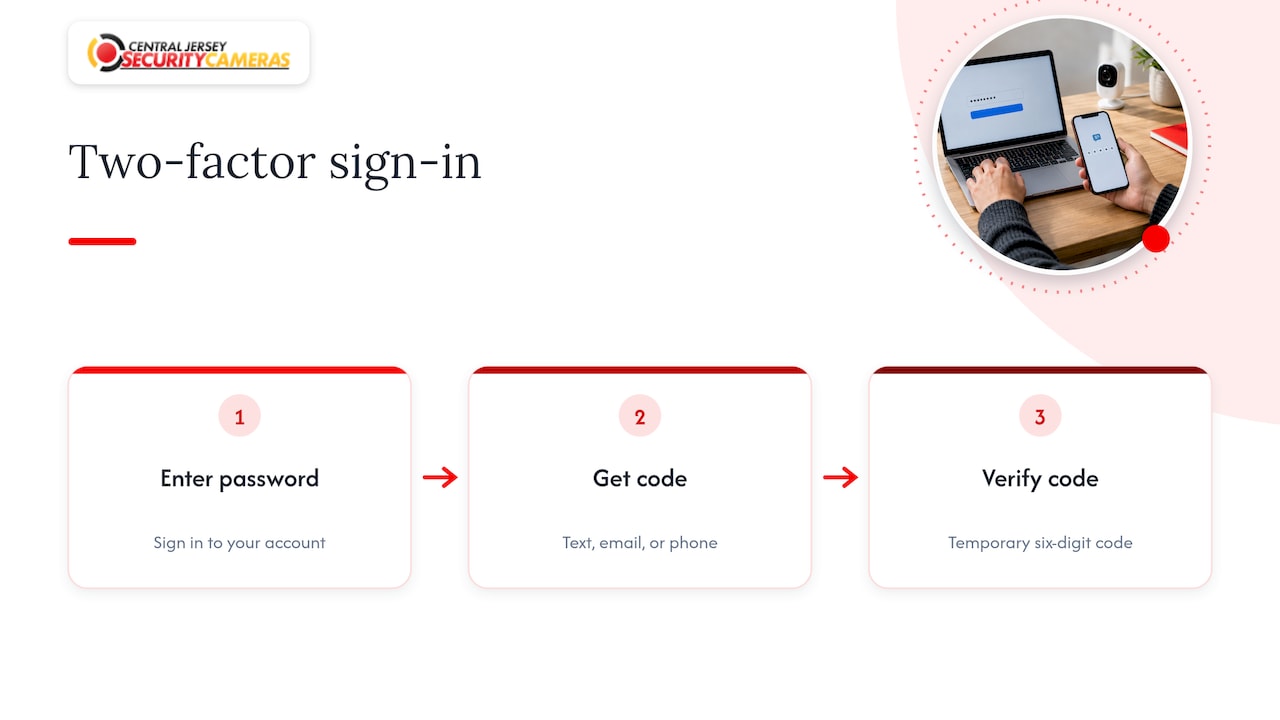
The point is simple. Passwords leak in data breaches, get guessed, and get reused across sites. A code that expires in minutes is much harder to steal in bulk.
Why the FBI cares about it
This is not a theoretical risk. In a public service announcement dated December 29, 2020, the FBI’s Internet Crime Complaint Center warned that offenders were using stolen email passwords to get into smart home devices that have cameras and voice capability, then using them in swatting attacks. The FBI advised enabling two-factor authentication and using a mobile number as the second factor, not a secondary email account.
That last detail is worth acting on. If your second factor is an email inbox and that inbox shares a weak or reused password, an attacker may reach both.
Which 2FA method to choose
Most camera platforms offer some mix of the options below. Not every system offers all of them, so check what your app lists under account or security settings.
| Method | How it works | Strengths | Watch out for |
|---|---|---|---|
| Authenticator app | An app on your phone generates a new code every 30 seconds or so | Works without cell signal, not tied to your phone number | You need a way to restore it if you change phones |
| Text message (SMS) | A code is texted to your mobile number | Easy, familiar, no extra app | Depends on your number staying in your control |
| Push notification | You approve or deny a prompt on a trusted device | Fast, nothing to type | Only available on some platforms |
| Email code | A code goes to your inbox | Better than nothing | Only as safe as the email account; the FBI favors a mobile number |
If you have a choice, an authenticator app is a solid default for a household or a small business. Text message is a perfectly good second choice and far better than a password alone.
Trusted devices and how often you will be asked
Many systems let you mark a phone or browser as trusted so you are not asked for a code every time. This is a convenience feature, and it is reasonable on the phone you carry every day. Do not mark a shared office computer or a family tablet as trusted. On a business account, every person who views cameras should have their own login and their own second factor, never one shared code on one person’s phone.
How to turn on 2FA, step by step
The menus differ by app, but the pattern is almost always the same.
- Update the app first. Older app versions may hide or lack the security options.
- Open the account or profile menu. Look for “Security,” “Account,” “Two-Factor Authentication” or “Two-Step Verification.”
- Pick your method. Choose an authenticator app or text message. Enter your own mobile number if asked.
- Verify. Type in the code you receive to prove it works.
- Save the backup codes. Store them in a password manager or print them and keep them somewhere locked. Do not leave them in a screenshot on the same phone.
- Add a backup number or second device if the platform allows it.
- Repeat for every user. Spouses, managers, office staff and anyone else with viewing rights need it on their own accounts.
- Change the password while you are there. Use a long, unique one that you use nowhere else.
If you have a recorder (NVR) that is viewed through a manufacturer’s cloud app, the 2FA setting usually lives in that cloud account, not on the recorder itself. If you also log in to the recorder directly on your network, that login has its own password, and it needs the same care.
Not every system makes it easy
The Consumer Reports testing of 26 home cameras against more than 70 privacy and security criteria in July 2020 found that several brands lacked two-factor authentication entirely, and that in the others the setting was often buried in the app instead of being offered at setup. Some of those makers have since changed their defaults, so the situation is better than it was, but the lesson holds: do not assume it is on. Open the settings and look.
What if your system does not support 2FA?
Some older cameras, recorders and no-name apps simply have no second-factor option. You still have good choices, and none of them involve living with the risk.
- Close off remote access you do not need. If you only review footage on site, turn off cloud or remote viewing for that device.
- Put the cameras on their own network segment. A properly built system keeps cameras and the recorder separate from laptops and phones, which limits what an intruder can reach. Our guide on how home networks support security cameras shows how that layout works at home.
- Use a firewall and restrict who can connect. More on this below.
- Consider upgrading the weak link. A professionally designed IP camera and NVR system gives you a platform where access control, account security and updates are planned together. That is exactly what we do on security camera installations across Central Jersey.
Beyond 2FA: the settings that matter just as much
2FA protects the login. It does not protect a camera that is wide open to the internet with a factory password. Treat it as one layer of several.
Passwords you can defend
The FBI’s guidance in the same IC3 announcement is to use strong, complex passwords or passphrases, not to reuse a password across accounts, and to update passwords regularly. A password manager makes that realistic. Change every default password on cameras and recorders the day they are installed.
Firewall, lockouts and device filtering
A 2021 FTI Consulting report on Hikvision camera and NVR setup recommends placing cameras and the NVR behind a firewall, using strong passwords of at least eight characters, turning on the illegal login lock feature to limit incorrect login attempts, and configuring MAC address filtering on the NVR so only specified devices can connect. It also advises installing software updates as soon as they are available. Those are sound habits for any brand of IP camera system, not only that one.
In plain terms:
- Firewall: keeps outside traffic from reaching the camera network unless you allow it.
- Login lockout: after a few wrong guesses, the account pauses, which stops automated guessing.
- Device filtering: the recorder talks only to devices you have approved.
- Updates: fixes for known weaknesses reach your cameras only if someone installs them.
Routine maintenance is where updates actually get done. We cover what a service visit should include in security camera maintenance explained for homeowners.
Limit who can see what
Give each person only the access their job needs. A receptionist may need live view of the lobby but not export rights for the whole building. Remove accounts the day an employee or contractor leaves. For access to doors and gates, access control installations follow the same principle: named users, logged activity, quick removal.
Everything on the network counts
An unprotected device anywhere on your network gives attackers a foothold. Businesses with screens, kiosks or signage should lock those down as well; this digital signage security checklist shows the same habits applied to another connected system.
2FA for businesses: a few extra rules
A shop, warehouse or office has more people and more turnover than a household, so account hygiene needs a routine.
- Name one person responsible for camera accounts.
- Require 2FA for every viewer and every administrator.
- Keep a short list of who has access, and review it each quarter.
- Store backup codes for administrator accounts in a company password manager or a locked safe, not on one employee’s phone.
- Keep the recorder in a locked room with the network ports out of reach.
Our article on commercial camera cybersecurity basics for businesses goes further into network design for offices and facilities.
If you lose your second factor
This is where people get hurt. Platforms handle lost phones differently, and some are strict by design: if you lose your authenticator and have no backup codes, no backup number and no access to your recovery email, you may lose the account and every device tied to it. That is the price of a security setting that works. A support agent cannot bypass it for you without also letting an attacker do the same.
Prevent the problem before it happens:
- Save backup codes at setup.
- Add a second phone number or trusted device if offered.
- When you buy a new phone, move your authenticator app over before you wipe or trade in the old one.
- Keep your recovery email secure with its own 2FA.
Our perspective
We install camera systems in homes and businesses across Ocean, Monmouth, Middlesex, Mercer and Burlington counties, and the same lesson keeps coming back: a camera system is a piece of network equipment as well as a piece of security equipment.
A custom-designed system gives you more control over that equipment than a boxed product. We design the cameras, the recorder and the remote viewing to fit your property, and that includes deciding who gets access and how they sign in. Account protection such as 2FA belongs in that design, not as an afterthought after the first scare.
Our free on-site evaluation is the right time to raise it. Bring your questions about who needs remote viewing, how many people share the system, and whether you want alarm monitoring added. We will plan the layout so the system is easy for you to use and hard for anyone else to get into.
If you already have cameras and are not sure how safe the logins are, tell us. Ongoing local service and support is part of what we offer, so a security review does not have to mean starting over.
Tom
Get a system designed with account security in mind
If you want cameras that are installed properly and set up for safe remote viewing, we can help. We design, install and maintain systems for homes and businesses across Central New Jersey, including IP cameras, 4K cameras, PTZ cameras, license plate recognition and NVRs. Our one-time installation fee is $99, and alarm monitoring plans run $24.95 to $29.95 per month.
Start with a free on-site evaluation. For homes, see our home security installation page. For offices, warehouses and other properties, see commercial security installations. You can also reach us through Central Jersey Security Cameras.
FAQ
Is two-factor authentication the same as two-step verification?
For everyday purposes, yes. Different companies use different names, but the idea is identical: after your password, you prove it is you with a second step such as a code or an approval on a trusted device. Look for either wording in your camera app’s account settings.
Is text message 2FA good enough for my cameras?
It is far better than a password alone, and the FBI recommends using a mobile number as the second factor instead of a secondary email address. An authenticator app is a slightly stronger choice if your platform supports it. Whichever you pick, keep control of your phone number and save backup codes.
Does 2FA slow down checking my cameras?
Very little. You enter a code at sign-in, and many apps let you trust your own phone so you are not asked every time. The few seconds are a small trade for keeping strangers out of your live feed.
Do I need 2FA if my cameras only record to a local recorder?
If nothing can reach the recorder from outside your network, the risk is much lower, but you should still protect the recorder with a strong unique password. The moment you turn on remote viewing, protect that account with 2FA where it is offered and keep the recorder behind a firewall.
Who can help me set this up in New Jersey?
We can. Our team designs and installs camera systems for homes and businesses across Central Jersey and can go over account security during a free on-site evaluation.
Sources
- Consumer Reports: Home Security Cameras Lack Security Measures
- FBI Internet Crime Complaint Center: Recent Swatting Attacks Targeting Residents With Camera and Voice-Enabled Smart Devices (PSA, December 29, 2020)
- FTI Consulting: Hikvision Camera and NVR Setup Options (October 2021)
- Digital Signage Security for Gym Managers: A Checklist