
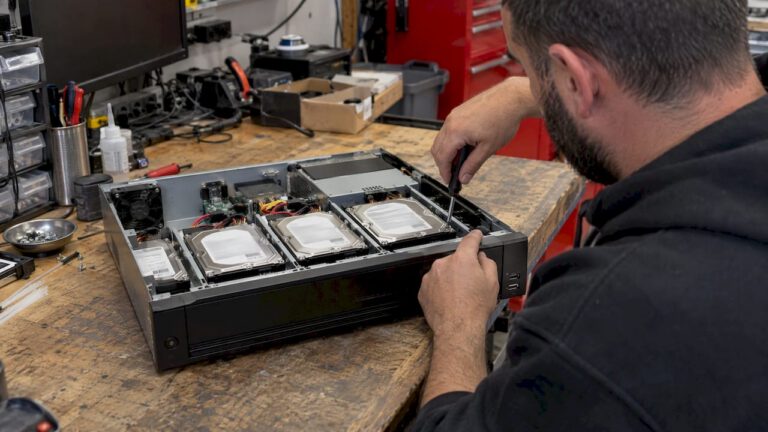
RAID on a network video recorder (NVR) spreads your footage across several hard drives so that one failed drive does not wipe out your recordings. For most New Jersey homes with a handful of cameras, a single well-chosen drive is enough. For a business with many cameras, long retention or footage you may need for insurance or police, a RAID 5 or RAID 6 array is the standard answer. It works best when it is designed with the cameras, the retention target and the drive bays together. That is how we plan every system at Central Jersey Security Cameras, starting with a free on-site evaluation.
TL;DR
- RAID combines two or more drives into one recording volume so the NVR keeps working and keeps your footage when a single drive dies.
- RAID 1 needs 2 drives, RAID 5 needs 3 or more, RAID 6 needs 4 or more and survives two failures, and RAID 10 needs an even number of at least 4.
- You pay for protection in capacity: RAID 5 gives up one drive’s worth of space, RAID 6 gives up two.
- RAID is not a backup. It does not protect against deleted footage, a stolen recorder or a fire.
- Size the array from your camera bitrates and retention days first, then pick the level and the drive count.
Table of Contents
- What RAID actually does inside an NVR
- RAID levels compared
- How many drives do you need?
- Size the array before you choose the level
- Setting up RAID without losing footage
- What happens when a drive fails
- RAID is not a backup
- Do you need RAID at all?
- Have your NVR and RAID planned for your property
- FAQ
- Sources
What RAID actually does inside an NVR
An NVR records video from IP cameras onto internal hard drives, around the clock. Those drives spin constantly, and every drive eventually fails. Without RAID, each drive is separate, and whatever was written to a dead drive is gone.
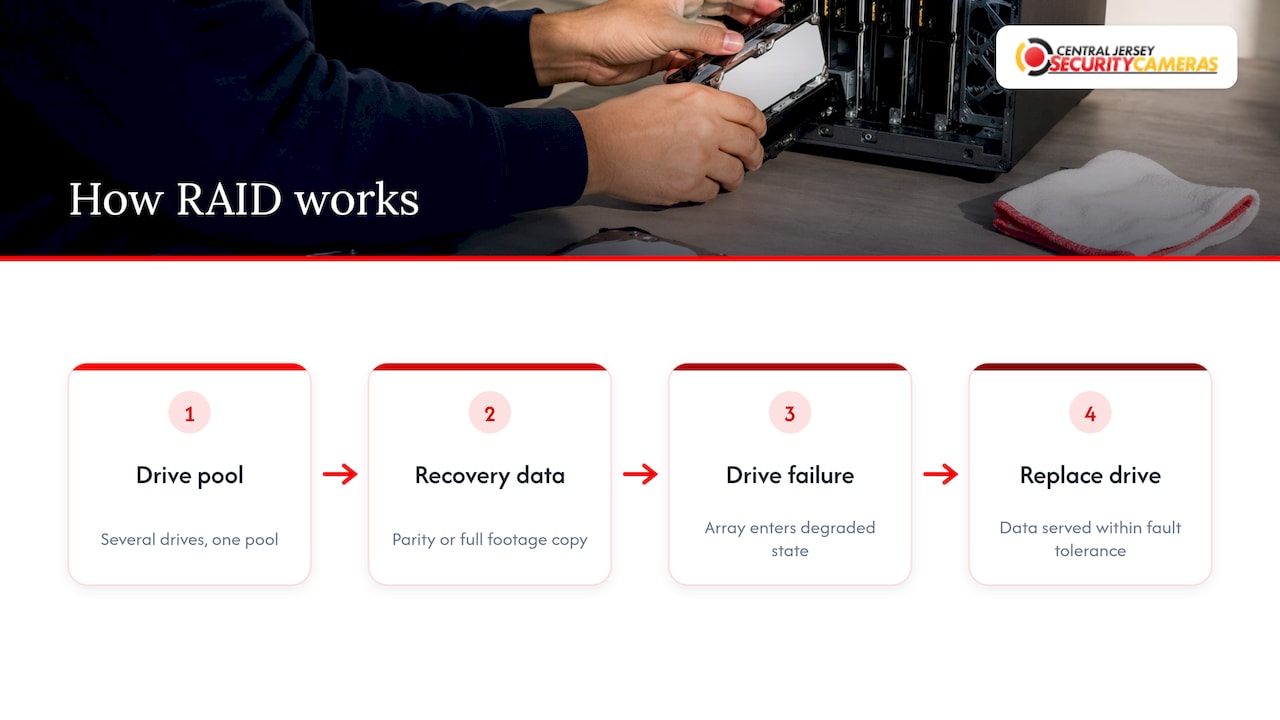
RAID stands for redundant array of independent disks. The NVR treats several drives as one pool and writes extra recovery data, called parity, or a full copy of the footage, across them. When one drive fails, the array enters a degraded state and keeps serving data within its fault tolerance while you swap in a replacement.
That matters most on the day you need the footage. A break-in, a slip-and-fall claim or a vehicle collision in your lot is exactly when a worn drive is most likely to be discovered missing.
RAID levels compared
NVRs typically offer a few levels. Here is how they differ in practice.
| Level | Minimum drives | Usable capacity | Failures survived |
|---|---|---|---|
| RAID 1 (mirror) | 2 | Half of the raw space | 1 |
| RAID 5 | 3 | All drives minus one | 1 |
| RAID 6 | 4 | All drives minus two | 2 |
| RAID 10 | 4, an even number | Half of the raw space | 1 per mirrored pair |
The drive minimums and usable-capacity figures follow the RAID 1 and RAID 5 guidance for recorders and UniFi’s published storage protection levels, which also list RAID 10 as needing an even number of at least four drives with 50% usable capacity. Exact options depend on the recorder model, so the spec sheet decides what you can actually select.
RAID 1: the small-system choice
Two drives hold identical copies. It is simple and quick to understand, but you only get one drive’s worth of space. It suits a small recorder with a few cameras where footage volume is modest.
RAID 5: the common middle ground
RAID 5 stripes data and parity across three or more drives. A manufacturer’s guide recommends RAID 5 for surveillance when you want both storage efficiency and protection from a single drive failure. Usable capacity is the smallest drive’s size times the number of drives minus one. Seagate’s RAID manual gives an example: five 8 TB drives yield 32 TB.
The catch is that a second drive failure before the rebuild finishes loses the whole array, a point the same manual makes. On very large drives, rebuilds are long, which is the window of risk.
RAID 6: two failures, more overhead
RAID 6 keeps two sets of parity and withstands up to two drive failures, though rebuilding is slower than RAID 5 because of the extra calculation. If you run four or more large drives and the footage matters, this is the level we would steer you toward.
RAID 10: speed and simplicity
RAID 10 mirrors pairs of drives and stripes across the pairs. You get half the raw capacity. It is usually a choice for larger, busier recorders.
How many drives do you need?
The drive count follows from the level, and the level follows from how much you can afford to lose.
- Two drives: RAID 1 is the only redundant option.
- Three drives: RAID 5, with two drives’ worth of space.
- Four drives: RAID 5 or RAID 6. RAID 6 gives two drives’ worth of space and survives two failures.
- Five or more: RAID 6 becomes the sensible default for large drives.
Two practical points save headaches later. First, use drives of the same size: mismatched capacity or speed limits the array to the smallest, slowest drive. A guide for one manufacturer’s recorders shows the cost: with one 2 TB and two 4 TB drives in RAID 5, you get about 4 TB usable, and the extra space on each 4 TB drive sits idle. Second, install every drive before you create the array. A single recording drive generally cannot be converted into an array later, and changing the drive set after the fact means a rebuild that can take hours.
Use drives built for surveillance. Recording drives run nonstop and write all day, which is a different job from a desktop drive’s occasional use. Check the recorder’s compatibility list for approved models before buying.
Also check the recorder itself. Not every NVR supports RAID. Look at the datasheet for the number of drive bays, the largest drive it accepts and the supported RAID levels. Our guide to NVR channels covers how camera count and incoming bandwidth shape which recorder you need.
Size the array before you choose the level
RAID protects what you store. It does not give you more days of footage. Start with retention.
A workable estimate: daily storage in terabytes is roughly the total camera bitrate in megabits per second multiplied by 0.0108, a conversion used in storage planning guides. Multiply by your retention days.
Worked example. A restaurant in Monmouth County runs 12 cameras at 4 Mbps each, so 48 Mbps in total.
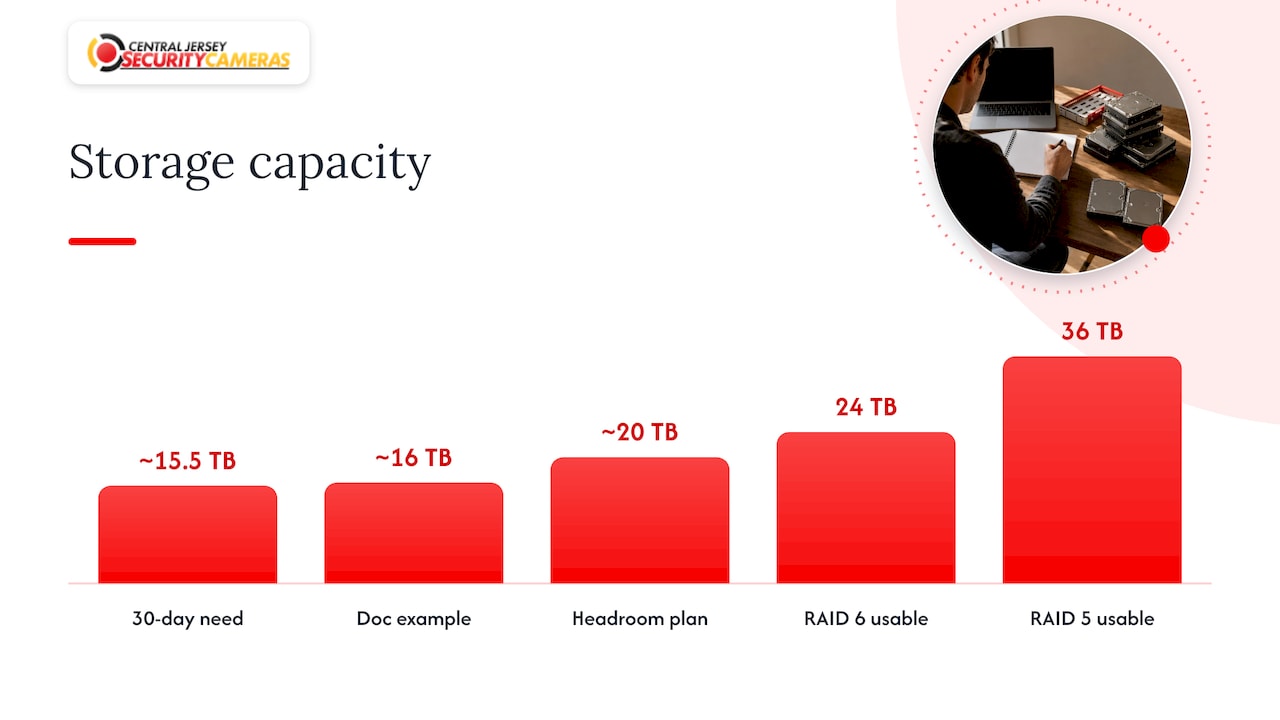
- Daily storage: 48 × 0.0108 = about 0.52 TB.
- Thirty days: about 15.5 TB of usable space needed. A similar example in one recorder’s documentation puts twelve 4 Mbps cameras at about 16 TB for 30 days and suggests planning around 20 TB to leave headroom.
- Choose the array: four 12 TB drives in RAID 6 give 24 TB usable, which clears the target. The same four drives in RAID 5 would give 36 TB, but only one failure of protection.
If you would like to try your own numbers, a camera storage calculator helps you size footage for a target number of days. Motion-based recording, lower frame rates and the compression your cameras use all change the result, so treat any estimate as a starting point.
Retention also has a policy side. If you are deciding how many days a business should keep, our piece on 30 to 90 day CCTV retention walks through the benchmarks. For the drive type itself, see HDD vs SSD for an NVR.
Setting up RAID without losing footage
The steps vary by brand, but the sequence is consistent.
- Install all the drives first. Same size, same model where possible, all fitted before you touch the storage menu.
- Open the storage or array management menu and enable RAID. On one common recorder family, you go to Storage, then Array Management, and choose automatic creation (two drives become RAID 1, three or more become RAID 5) or manual creation, as the setup guide for those recorders explains.
- Know what you give up. Once drives are in an array, they can no longer be used independently, and some settings, such as expansion or long-term storage and disk quotas on that model, become unavailable.
- Wait for initialization. A new array builds in the background while recording continues. On 24 TB drives, one documentation set puts the initial sync at roughly 1.5 to 2.5 days.
- Map your camera channels and confirm recording. Check that every camera shows footage in playback, not only live view.
- Test the failure alert. Make sure the recorder will email or push a notice when a drive drops out. An array running degraded for months because nobody saw the warning is a common way to lose the second drive.
One caution: creating or changing an array can erase existing recordings on those drives. Export anything you need first.
What happens when a drive fails
The array shows a degraded status. Recording continues, though performance can dip. During the rebuild, one manufacturer’s guide explains that running it in foreground mode makes recording unavailable, while background mode keeps recording available but may be less stable. The replacement drive must be at least as large as the smallest drive in the array.
Rebuilds take time. The same VS NVR documentation says a rebuild onto a new drive takes days on large drives, and that a RAID 5 array is lost if a second drive fails before it finishes. That is the practical reason RAID 6 is attractive on large drives: it tolerates that second failure.
You can improve your odds with a few habits:
- Replace a failed drive promptly with a matching surveillance drive.
- Keep the recorder on a UPS (battery backup). The VS NVR guide calls a power cut the riskiest moment for an array, especially while changing drives.
- Leave empty bays for growth if the recorder allows it. RAID 5 and RAID 6 arrays can often take added drives, while a two-drive mirror cannot.
RAID is not a backup
RAID covers hard drive failure. It does not cover accidental deletion, a failed recorder, theft of the unit or damage from fire or water. A recorder manufacturer’s own support page says RAID does not protect against accidental deletion or device failure and that important recordings should be backed up separately.
So for an incident you may need to hand to police or an insurer, export the clip. Keep the recorder in a locked, ventilated closet, not on a shelf by the front door where it can be taken. If you want to understand how shared footage helps investigations, the National Security Camera Registry is one resource that shows how camera footage ties into unsolved cases.
Do you need RAID at all?
It depends on what the footage is worth.
- A home with four to eight cameras: A single surveillance-grade drive often covers a few weeks of footage. RAID 1 is a reasonable step up if you want protection for the same budget class of recorder.
- A small business, such as a shop, office or restaurant: RAID 5 or RAID 6 makes sense, because footage supports disputes, claims and employee incidents.
- Warehouses, schools, apartment complexes and self-storage: Many cameras and long retention push you to RAID 6 on a multi-bay recorder. Our self-storage camera system guide shows how that scale plays out.
Our view on RAID in the field
We design each system around the property, not around a box off the shelf. For RAID that means starting with the number of cameras, the bitrate they produce and how many days you actually need to keep, then choosing a recorder with enough bays and the right array level for that target.
The mistake we want you to avoid is buying a recorder first and discovering later that it has two bays and no RAID support. Retention, drive count and redundancy are one decision. Custom design is how you make it once.
The other half is service afterward. An array only protects you if somebody notices the degraded warning and swaps the drive. That is why we pair installation with ongoing local support and repairs, so a failed drive becomes a routine visit instead of a lost week of footage.
Tom
Have your NVR and RAID planned for your property
If you are in Ocean, Monmouth, Middlesex, Mercer or Burlington County, we can evaluate your property for free, size the recorder and storage to your cameras, and install the system. Our security camera installation carries a one-time installation fee of $99. Businesses can see our commercial security installations, and homeowners our home security installation.

FAQ
Does every NVR support RAID?
No. Many entry-level recorders have one or two bays and record to independent drives. RAID needs multiple bays and a recorder that lists the levels you want, so check the datasheet for bay count, maximum drive size and supported RAID levels before you buy.
Is RAID 5 or RAID 6 better for security cameras?
RAID 5 gives more usable space and survives one drive failure. RAID 6 gives up a second drive’s worth of space but survives two failures, which helps during the long rebuild on large drives. With four or more large drives and important footage, RAID 6 is the safer pick.
How long does a RAID rebuild take?
It depends on drive size and how busy the recorder is. Documentation for one recorder says rebuilding onto a new drive takes days on large drives. During that window, a second failure can lose a RAID 5 array.
Can I add a drive to an existing array later?
Sometimes. RAID 5 and RAID 6 arrays can often take added drives one at a time, but a two-drive mirror cannot, and a single standalone drive cannot be converted into an array. Adding or replacing drives requires a rebuild that can take several hours, so plan spare bays when you buy.
Sources
- RAID 1 and RAID 5 configuration guide for VIGI NVRs
- Seagate RAID Manager user manual, RAID levels
- Storage Protection and Data Redundancy in UniFi (RAID)
- Drive arrays (RAID), VS NVR documentation
- UniFi Protect storage calculator and retention planning
- Camera storage calculator
- National Security Camera Registry