
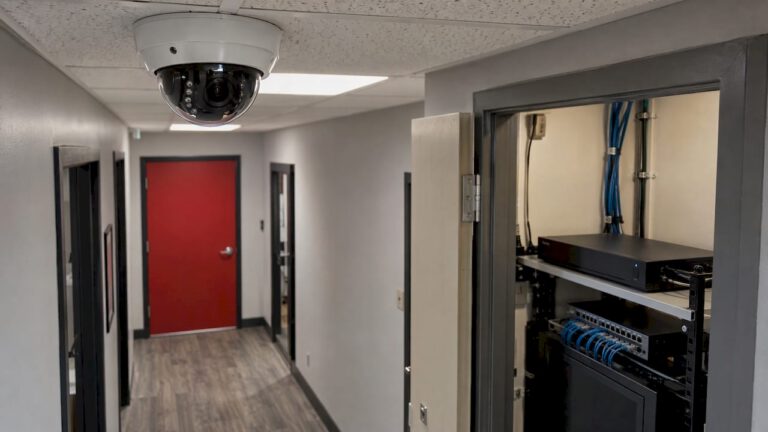
Security camera bandwidth is the amount of video data your cameras send every second, and for most New Jersey homes and small businesses it is a modest number that a properly designed system handles easily. The figure that matters depends on resolution, frame rate, how busy the scene is, and where the video goes. Recording to a recorder on your own network barely touches your internet connection. Watching live video from your phone away from home is what uses your upload speed. We design every system around that difference, so bandwidth never becomes the thing that slows your cameras or your Wi-Fi.
TL;DR
- Bandwidth is a rate of data transfer, usually measured in megabits per second (Mbps). Each camera has its own bitrate, and the total is roughly the sum of all cameras.
- Resolution, frame rate, compression, lighting and motion in the scene decide how high each camera’s bitrate runs.
- Cameras recording to a local recorder use your home or office network, not your internet plan. Remote viewing uses upload speed, and that is the number to check with your provider.
- Bandwidth and storage are linked: the same bitrate that loads your network fills your hard drive. Motion-based recording and sensible settings stretch both.
- A designed system, with the right cameras, wiring and recorder settings, keeps bandwidth predictable instead of guesswork.
Table of Contents
- What bandwidth means for a security camera
- What makes one camera use more bandwidth than another
- Recording locally versus watching remotely
- How to calculate the bandwidth for your system
- Bandwidth and storage: the same math
- Ways to bring bandwidth down without losing the evidence
- What changes for a business
- Signs a bandwidth problem is hiding in your system
- Our approach to bandwidth
- Get a system sized for your property
- FAQ
- Sources
What bandwidth means for a security camera
Bandwidth is a rate of data transfer, typically measured in bits per second. A camera turns what it sees into a compressed video stream, and the bitrate is how many megabits that stream carries each second. A camera that produces 4 Mbps is sending four megabits of video every second, all day, whenever it is streaming.
People often ask whether bandwidth should be high or low. The honest answer is that it is a budget, not a goal. A higher bitrate usually means sharper, smoother video, which helps when you need to read a license plate or recognize a face. A lower bitrate saves network capacity and disk space but can blur detail. The job is to spend bandwidth where the picture matters, like a driveway, a front door or a cash counter, and save it where it does not, like a quiet hallway.
Two terms are worth keeping straight:
- Bitrate is the data a single camera stream produces, in Mbps.
- Bandwidth is the capacity of a network link, or the total traffic crossing it. Your internet plan, your router and the cable between a camera and the recorder each have their own limit.
What makes one camera use more bandwidth than another
Five things do most of the work.
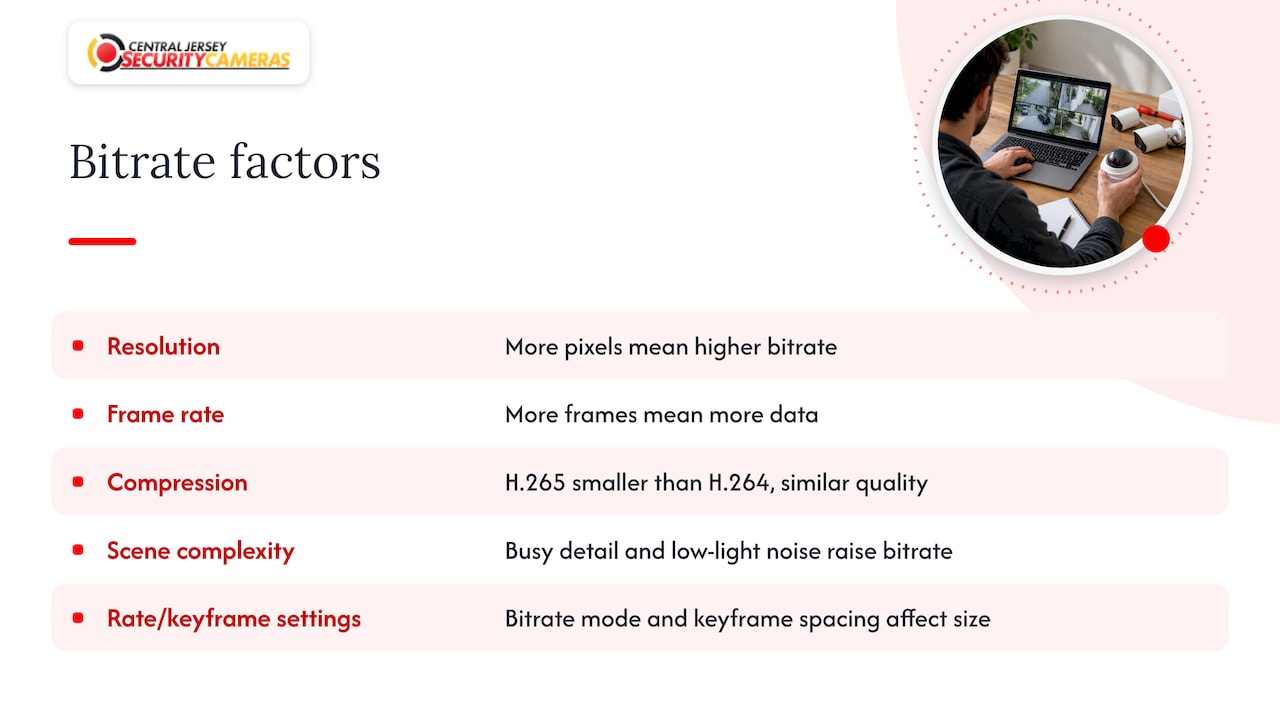
Resolution. More pixels per frame means more data. A 4K camera has far more pixels than a 1080p camera, so at similar settings it needs a higher bitrate. We cover this trade-off for specific cameras when we plan a layout.
Frame rate. Frames per second controls how smooth motion looks. More frames per second means more data. Many scenes look fine at a moderate rate, and our guide to security camera frame rate explains where the extra frames are worth it and where they are not.
Compression. Modern compression such as H.264 and H.265 shrinks video dramatically by storing mainly what changes between frames. H.265 generally produces smaller streams than H.264 at similar quality, which is why newer recorders and cameras favor it.
Scene complexity. A camera watching a busy street, swaying trees, rain or headlights has more changing detail to encode than one watching a still garage. Low light also adds visual noise that the camera has to encode, which can push bitrate up. Bitrate varies with scene complexity, low-light noise and activity, and smart codecs can bring it down.
Rate control and keyframe settings. Cameras can hold a constant bitrate, let it vary with the scene, or vary within a ceiling. Keyframe spacing, the interval between complete images, also affects size. These are settings a technician tunes, and we go through them in CCTV bitrate settings: what to set and why.
Recording locally versus watching remotely
This is the distinction that clears up most confusion about security camera bandwidth.
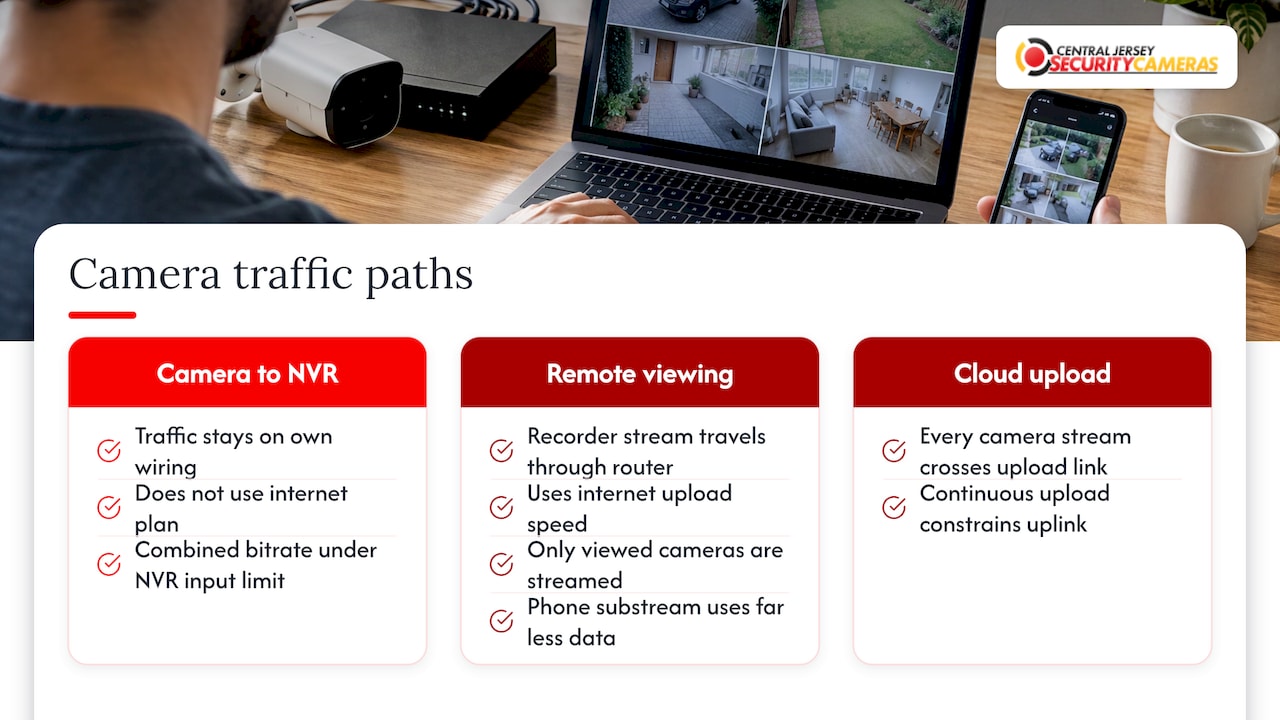
Cameras to recorder. In a professionally installed system, the cameras connect by network cable to a network video recorder (NVR), the box that stores the video. That traffic stays on your own wiring. It does not use your internet plan, and a stable wired connection can carry it without competing with Netflix or video calls. What matters here is the cable run, the switch and the recorder’s total input limit. A recorder is built to take a certain total from all its cameras, and the combined bitrate of every camera has to stay under it. Our explainer on NVR channels shows how two cameras’ bitrates add up against that limit.
Recorder to your phone. When you open the app away from home, the video travels from your recorder out through your router to the internet. That is an upload, and upload speed is usually much lower than the download speed on your plan. Watching one or two cameras live at a time uses a fraction of what all your cameras produce, because you are only streaming what you look at. Many systems also offer a lower-quality substream for phones, which uses far less data than the full recording stream.
Cloud upload. If a system sends continuous video to the cloud, every camera’s stream crosses your upload link all day. That is where upload speed becomes a real constraint. As AI-driven surveillance grows, large volumes of data must be uploaded continuously, which raises the importance of a strong uplink. A local recorder avoids that burden, and it is one reason we build around on-site recording with remote viewing on top.
How to calculate the bandwidth for your system
You need three numbers: how many cameras, each camera’s bitrate, and how many of them stream at once. You can find each camera’s bitrate in its settings or on the recorder’s status screen.
- List your cameras and their bitrates. If you have not set them, use the camera’s current configured value.
- Add them up. Total bitrate is the sum. Eight cameras at 4 Mbps each produce 32 Mbps.
- Compare to the recorder and switch limits. The total must sit comfortably below what the recorder accepts and what the switch can carry. Leave headroom rather than running at the ceiling.
- Estimate the remote-viewing load. Add up only the streams you would watch at the same time away from home. Watching two of those eight cameras at 4 Mbps needs about 8 Mbps of upload, less if you use the substream.
- Check your upload speed. Run a speed test from your own network and compare the upload figure to step 4. If your connection is shared with other people or devices, they need room too.
The numbers above are examples for the arithmetic, not a rule for your cameras. Real bitrates depend on your camera settings and scenes, which is why we measure them on site rather than assume them.
Is 100 Mbps or 300 Mbps enough?
Most people quote their download speed when they ask this, but cameras recording locally do not use it, and remote viewing relies on upload. A fast plan is not automatically a good camera plan, and a modest plan is not automatically a bad one. Using the example above, a 32 Mbps total of continuous recording stays on your internal network, and two live remote streams need about 8 Mbps of upload. Plenty of ordinary systems run well on lower speeds as long as the uplink is stable. If you are weighing a specific plan, we walk through it in is 100 Mbps enough for security cameras.
Faster uplinks keep getting more capable. In one trial, Verizon, Ericsson and Qualcomm reached a 480 Mbps uplink speed over sub-6 GHz spectrum. Speeds like that are a lab result, not a promise for any address in Central Jersey, so your own speed test is the number to trust.
Bandwidth and storage: the same math
The bitrate that loads your network also fills your hard drive. The formula is simple: hours of video per day times the bitrate converted to data. For one hour, gigabytes equal bitrate in Mbps times 3,600 seconds, divided by 8 to turn bits into bytes, divided by 1,024 to reach gigabytes.
Worked example with a single camera at 4 Mbps:
- One hour: 4 × 3,600 ÷ 8 ÷ 1,024 is about 1.76 GB.
- 24 hours: about 42 GB.
- Eight cameras recording nonstop for 24 hours: about 337 GB.
- Thirty days of that: roughly 10 TB.
That is why storage planning and bandwidth planning are one job. Storage requirements are tied directly to bandwidth, and recording only when motion occurs can extend how long footage is kept. If cameras on a quiet side yard record only when something moves, that stream might use a small fraction of the nonstop figure. Our article on the factors that affect CCTV storage capacity goes through the full list.
Ways to bring bandwidth down without losing the evidence
You do not have to accept a blurry picture to save data. These are the levers, in the order we usually reach for them:
- Match the camera to the zone. Put higher resolution on entrances, driveways and plate-reading spots, and use lower-demand cameras for low-risk areas. Our camera types by zone and bandwidth chart shows this for growing businesses.
- Use efficient compression. Choose H.265 where your recorder and cameras support it.
- Set rate control sensibly. A variable bitrate with a ceiling lets quiet scenes use little data while busy moments get what they need.
- Lengthen keyframe spacing in static scenes. Fewer complete images means smaller streams, though the start of a stream may take slightly longer to appear.
- Record on motion or on a schedule. A store that is closed at night can record differently than during opening hours.
- Use the substream for remote viewing. Your phone does not need the full recording quality to show you who is at the door.
- Turn off analytics you do not use. Features that run constantly add load, so keep the ones you will actually rely on.
- Keep camera traffic off your busy network. A dedicated switch is best. Where that is impractical, separating camera traffic into its own virtual network, called a VLAN, keeps it from competing with everything else. Wired cameras also free up Wi-Fi, which is covered in how home networks support security cameras.
What changes for a business
A home with four cameras and a business with thirty are different problems. Businesses tend to have more cameras, longer retention needs, multiple people viewing at once, and staff and point-of-sale traffic sharing the network. Three things deserve attention:
- Total recorder input. Add every camera’s bitrate and confirm the recorder and switches have headroom, including for cameras you will add later.
- Cable distance and quality. Long runs, aging cable and poor terminations cause dropped video that looks like a bandwidth problem. Our guide to CCTV cable management covers routing, racks and fiber.
- Simultaneous viewers. A manager at home, an owner traveling and an off-site partner all pulling live video at once multiply the upload load. Plan for the busiest realistic moment.
If you are expanding, designing for the next five cameras now is cheaper than reworking a network later.
Signs a bandwidth problem is hiding in your system
Most owners never look at a bitrate. They notice symptoms:
- Live video that stutters or freezes when someone else is on a video call.
- Remote viewing that works at home but crawls on cellular.
- Footage that blocks up or smears during motion, which can mean the bitrate ceiling is set too low for a busy scene.
- A recorder that drops cameras after a new one is added, which can mean its total input limit has been reached.
- A hard drive that fills in days rather than weeks.
Each has a different cause: network congestion, a weak uplink, a bitrate ceiling set too low, an overloaded recorder or continuous recording that should be on motion. Telling them apart is a measurement exercise, and it is faster done on site.
Our approach to bandwidth
We design every system around the property, not around a box of cameras. Before we choose hardware, we look at what each camera needs to capture, how far its cable has to run, and how you want to watch it. That is how bandwidth stays a planned number instead of a surprise.
Consumer camera kits are built to be simple, and many send video through the cloud. That works for a single doorbell. For a whole property, a custom system with a recorder on your own network keeps recording independent of your internet plan and keeps remote viewing predictable. We set bitrates, frame rates and recording modes camera by camera, so your driveway gets detail and your hallway does not waste storage.
The same applies to storage. When we plan retention, we do the math in this article for your actual cameras, so you know how many days of footage the recorder will hold before you ever need it.
Tom
Get a system sized for your property
We design, install and maintain security camera systems for homes and businesses across Central New Jersey, including Ocean, Monmouth, Middlesex, Mercer and Burlington counties. That includes IP and 4K cameras, PTZ cameras, license plate recognition cameras, NVRs and remote viewing, and we offer free on-site evaluations. Our published one-time installation fee is $99. See our security camera installation page, or our pages for home security and commercial security installation.

If you already have cameras that stutter or a recorder that fills too fast, an on-site look at the settings and the network is usually the quickest way to find the cause.
FAQ
Should security camera bandwidth be high or low?
It should be as high as the important scenes need and no higher. Entrances and plate-reading spots benefit from more bandwidth for sharper detail. Quiet areas can run lower to save network capacity and storage.
How many gigabytes does a security camera use in 24 hours?
It depends on the bitrate. A camera at 4 Mbps recording nonstop uses about 42 GB per day, using bitrate times 3,600, divided by 8, divided by 1,024 for each hour. Recording only on motion can cut that substantially, depending on how busy the scene is.
Do security cameras use my home internet?
Cameras that record to a recorder on your own network do not use your internet plan for that recording. Internet is used when you watch remotely or if video is sent to the cloud. For remote viewing, upload speed is the number that matters.
Is 300 Mbps fast enough for security cameras?
Yes, for most homes and small businesses, though the plan’s download speed is not the deciding figure. What matters is the stable upload speed you have for remote viewing and the total bitrate of your cameras. Many standard systems run well on much lower speeds when the connection is stable.
Can I lower bandwidth without lowering video quality?
Often, yes. Efficient compression such as H.265, a variable bitrate with a ceiling, motion-based recording and a lower-quality substream for phone viewing all reduce data. Our bitrate settings guide explains each setting.
Sources
- Bandwidth Fundamentals For Video Surveillance, IPVM
- Verizon sets new 5G upload speed record
- Understanding IP Surveillance Camera Bandwidth, Fortinet