
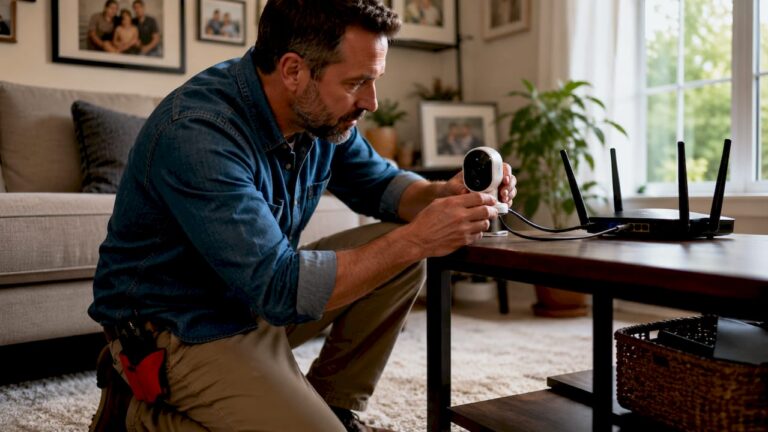
A home network supports security cameras by assigning each camera an IP address, routing video data to a recorder or app, and maintaining enough bandwidth for real-time streaming. Without a properly configured network, even a high-end 4K camera delivers choppy footage, drops connections, or fails to record. Understanding how home network supports cameras is the first step toward building a surveillance system that actually works when you need it. The core components involved are a router, a switch or PoE switch, and in wireless setups, Wi-Fi access points.
How do home networks assign IP addresses and manage camera data traffic?
Every IP security camera is a network device. When you plug a camera into your router or switch, the router’s DHCP server automatically assigns it a unique IP address. That address is how the rest of your network, including your NVR, PC, or phone app, knows where to send requests and where to receive video. IP cameras transmit video continuously to an NVR, PC, or app, with routers assigning IP addresses and controlling traffic.
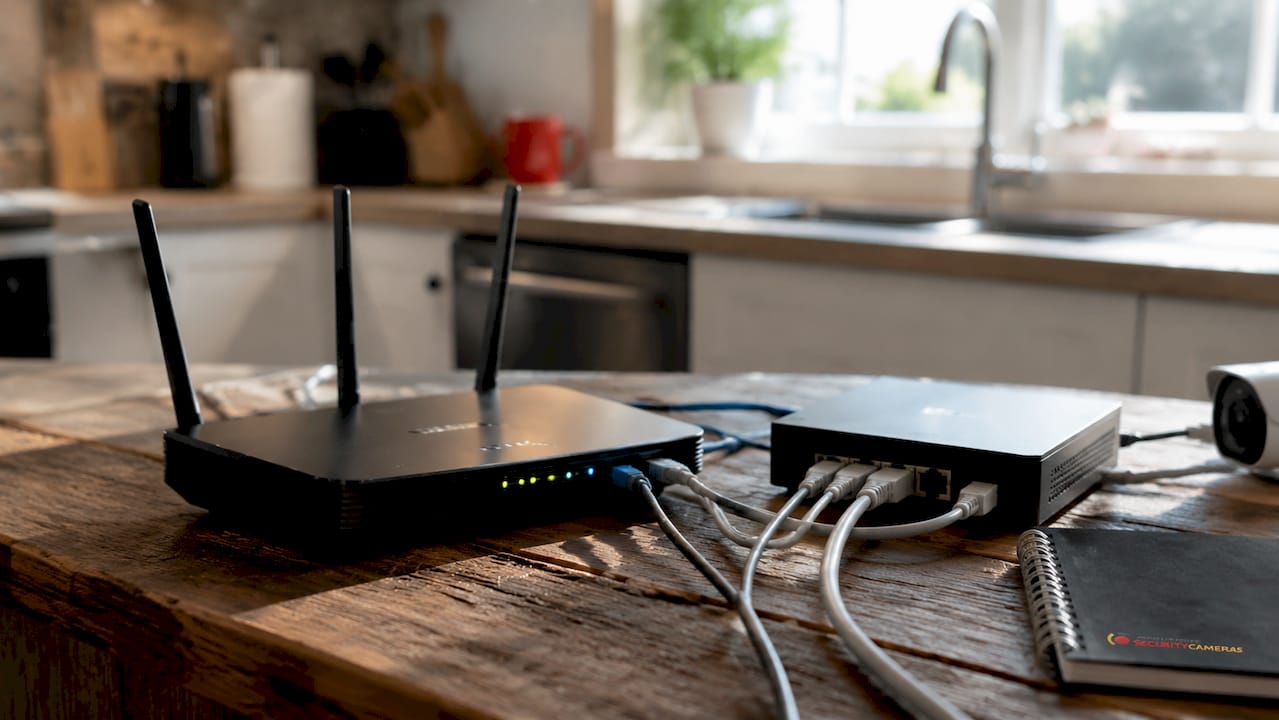
The protocol doing the heavy lifting is RTSP, which stands for Real Time Streaming Protocol. RTSP controls media sessions and operates over TCP/UDP port 554, acting as the universal standard for IP camera streams. The camera acts as an RTSP server, and your NVR or viewing app acts as the client that pulls the stream. RTSP handles the session setup, but the actual video packets travel separately via RTP (Real-time Transport Protocol).
Here is what happens on your network every time a camera streams:
- The router assigns the camera an IP address via DHCP on startup.
- The NVR or app sends a request to the camera’s IP address over port 554.
- The camera opens an RTSP session and begins pushing video packets via RTP.
- The router directs that traffic to the correct device based on IP and port.
- If multiple cameras stream simultaneously, the router manages all those concurrent data flows.
Pro Tip: Assign static IP addresses to your cameras through your router’s DHCP reservation feature. This prevents cameras from getting new addresses after a reboot, which would break your NVR’s connection to them.
What bandwidth and upload capacity considerations affect camera performance?
Bandwidth is the most common reason a camera system underperforms. A single 4K camera using H.264 can require 8–16 Mbps of continuous upload bandwidth. Switching to H.265 encoding cuts that to roughly 4–8 Mbps per camera. The difference matters enormously once you scale to four, eight, or sixteen cameras.
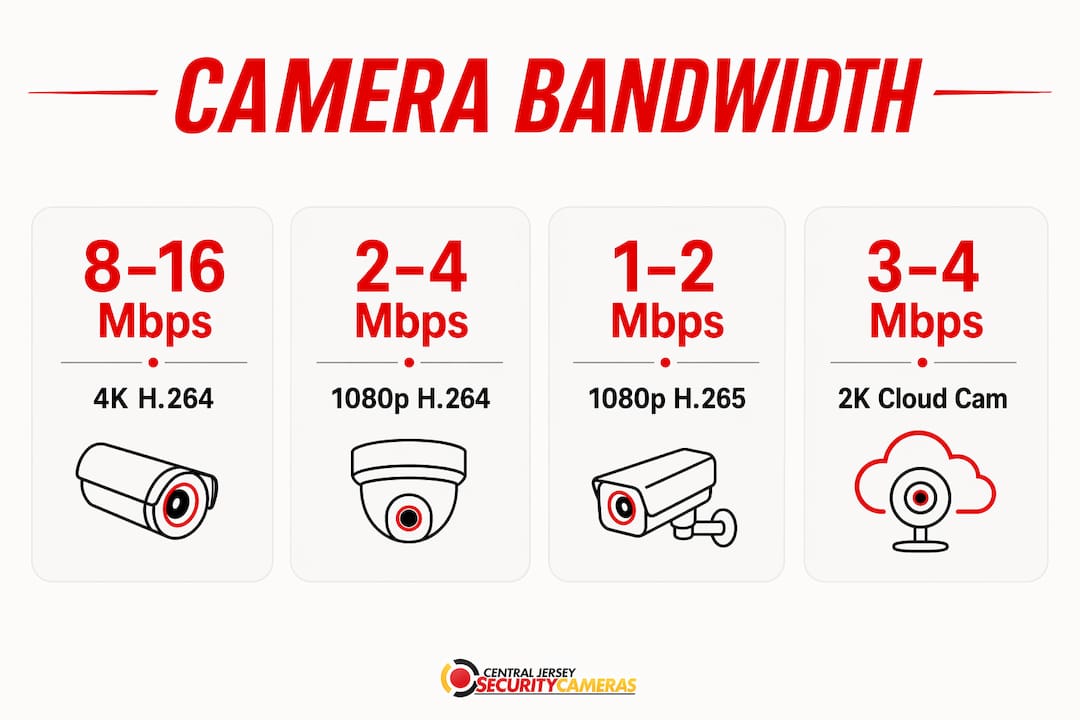
| Camera Resolution | H.264 Upload (per camera) | H.265 Upload (per camera) |
|---|---|---|
| 1080p | 2–4 Mbps | 1–2 Mbps |
| 2K | 3–4 Mbps | 1.5–2 Mbps |
| 4K | 8–16 Mbps | 4–8 Mbps |
Cloud-connected cameras create a specific problem. Multiple 2K cloud cameras consume 3–4 Mbps upload each, and stacking several of them can saturate a typical home internet connection. Most residential internet plans offer asymmetric speeds, meaning upload is far slower than download. A plan with 500 Mbps download might only offer 20–50 Mbps upload. Four 4K cameras on H.264 could consume the entire upload pipe, leaving no bandwidth for video calls, remote work, or other devices.
Continuous upload traffic from cameras can saturate home upload bandwidth, causing all network communication to degrade, not just streaming quality. The fix is local recording. An NVR stores footage on a hard drive inside your home, so video data never leaves the local network. Cloud backup can run on a schedule during off-peak hours rather than continuously.
How does network segmentation using VLANs improve security and reliability?
A VLAN, or Virtual Local Area Network, creates a logically separate network segment on the same physical hardware. VLANs limit camera network access with firewall rules, isolating cameras, NVRs, and management systems from each other and from your main devices. This matters because security cameras are IoT devices, and IoT devices are frequent targets for network intrusion.
| Network Segment | Devices | Access Allowed |
|---|---|---|
| Camera VLAN | IP cameras | NVR only, no internet |
| NVR VLAN | Network video recorder | Camera VLAN, admin PC |
| Management VLAN | Admin PC, router | All VLANs (read only) |
| Main LAN | Laptops, phones, TVs | Internet only |
The critical detail most homeowners miss is that Layer-2 VLAN separation alone is not enough. Security camera VLANs require explicit inter-VLAN firewall rules to restrict access paths. Without those rules, traffic can still route between segments, defeating the purpose of segmentation. A properly configured firewall rule blocks cameras from reaching your main LAN while still allowing your NVR to pull streams from the camera VLAN.
Most camera problems stem from improper network segmentation, leading to both security vulnerabilities and reliability issues. When a camera on a flat network gets compromised, an attacker can move laterally to laptops, NAS drives, and other devices. A VLAN-isolated camera can only reach the NVR, containing any damage.
Pro Tip: Use a managed switch from brands like Netgear, TP-Link, or Ubiquiti to configure VLANs at home. Unmanaged switches do not support VLAN tagging, so they cannot create the separation you need.
What are the differences between wired PoE and wireless camera connections?
PoE, or Power over Ethernet, delivers both electrical power and network data through a single Cat5e or Cat6 cable. PoE allows cable runs up to roughly 100 meters and eliminates the need for a separate power outlet at each camera location. This makes PoE the preferred choice for fixed outdoor cameras, parking lots, warehouses, and any location where Wi-Fi signal is unreliable.
Wi-Fi cameras offer flexibility where running cable is impractical. A garage side wall, a detached shed, or a rental unit where drilling is restricted are all good candidates for wireless cameras. The trade-offs are real, though:
- Wi-Fi cameras depend on signal strength. A weak signal causes buffering, dropped frames, and missed motion events.
- The 2.4 GHz band offers better range and wall penetration than 5 GHz, making it the better choice for cameras far from the router.
- Wireless cameras still need a power outlet unless they run on batteries, which limits recording duration.
- Interference from neighboring networks, microwaves, and Bluetooth devices can degrade 2.4 GHz performance in dense residential areas.
- PoE cameras connect directly to a PoE switch, which connects to your router, creating a clean and predictable data path.
Hybrid networks combine PoE wired cameras with wireless cameras on isolated Wi-Fi networks, balancing reliability and convenience. A typical setup uses PoE for front door, driveway, and backyard cameras, then adds Wi-Fi cameras in locations where cable runs are not feasible. For homeowners exploring wired PoE camera options, this hybrid approach delivers the best of both technologies.
How to optimize Wi-Fi networks for multiple security cameras
Getting Wi-Fi right for a multi-camera setup requires more than a fast router. Signal strength at the camera location is the starting point. Wi-Fi cameras perform best at signal strength around -65 dBm, which reduces buffering and connection drops. You can measure signal strength using a free app like Wi-Fi Analyzer on Android or the Wireless Diagnostics tool built into macOS.
Follow these steps to build a reliable wireless camera network:
- Measure signal strength at each camera location before mounting anything. Walk the site with your phone and check the dBm reading. If it reads worse than -70 dBm, add a Wi-Fi access point or mesh node closer to that spot.
- Create a dedicated IoT SSID for your cameras. Isolating cameras on a separate network name keeps them off your main devices’ network and makes firewall rules easier to apply.
- Use the 2.4 GHz band for cameras that are more than one room away from the access point. The 2.4 GHz band carries signal through walls and over longer distances better than 5 GHz.
- Consider Wi-Fi 6 access points if you run more than four wireless cameras. Wi-Fi 6 uses OFDMA technology to handle multiple simultaneous uploads more efficiently, which directly benefits cameras all streaming at the same time.
- Place access points centrally relative to your camera locations, not just near your modem. A mesh system from brands like Eero, Google Nest, or Ubiquiti UniFi distributes coverage more evenly across a property than a single router.
Key takeaways
A home network supports security cameras through IP address assignment, traffic routing, bandwidth management, and network segmentation, all of which must be correctly configured for reliable surveillance.
| Point | Details |
|---|---|
| IP address management | Routers assign cameras IP addresses via DHCP; use static reservations to prevent connection breaks. |
| Bandwidth planning | One 4K H.265 camera needs 4–8 Mbps upload; local NVR recording prevents upload saturation. |
| VLAN segmentation | Isolate cameras on a dedicated VLAN with explicit firewall rules to contain security risks. |
| PoE vs. Wi-Fi | Use PoE for fixed locations and Wi-Fi for hard-to-wire spots; hybrid setups work best in practice. |
| Wi-Fi optimization | Target -65 dBm signal strength at each camera and isolate cameras on a dedicated IoT SSID. |
What I’ve learned from years of camera network installs
The single most common mistake I see is treating security cameras like any other device on a flat home network. Homeowners plug in four cameras, connect them to the main router, and wonder why their Zoom calls stutter and their NVR drops feeds. The cameras are not broken. The network design is.
Local recording solves more problems than any router upgrade. When cameras write to an NVR on-site rather than pushing video to the cloud, upload bandwidth stays free for everything else. I have seen setups where switching from cloud to local recording fixed Wi-Fi slowdowns that the homeowner had blamed on their internet provider for months.
The other lesson is that hybrid wired and wireless setups are almost always the right answer. Running PoE cable to every camera is ideal, but it is not always practical in a finished home or a rented commercial space. Wireless cameras on an isolated IoT SSID, backed by a mesh access point placed close to the camera cluster, perform reliably when the signal is right. The key is measuring before mounting, not after.
Network segmentation is not just for IT departments. Any homeowner running more than two or three cameras benefits from putting those cameras on their own VLAN. The setup takes an afternoon with a managed switch and a router that supports VLAN tagging, and it prevents a compromised camera from becoming a door into the rest of your network.
— Tom
Professional camera network setup from Central Jersey Security Cameras
Getting the network right matters as much as choosing the right cameras. Central Jersey Security Cameras designs and installs complete surveillance systems for homes and businesses throughout Central New Jersey, including Ocean County, Monmouth County, Middlesex County, and Mercer County.

Every installation includes proper network planning, whether that means a PoE switch and NVR for a wired system or a dedicated IoT SSID and access point placement for wireless cameras. The team handles home security camera installation from design through configuration, including VLAN setup and remote access. For commercial properties, business surveillance solutions cover everything from warehouse coverage to multi-site monitoring. Contact Central Jersey Security Cameras to get a system that works the first time.
FAQ
What does a home network do for security cameras?
A home network assigns each camera an IP address, routes video data to an NVR or app, and manages bandwidth across all connected devices. Without a stable network, cameras cannot stream, record, or send alerts reliably.
How much internet speed do I need for security cameras?
A single 4K camera using H.265 encoding needs roughly 4–8 Mbps of upload bandwidth. Local NVR recording eliminates most of that upload demand, since video stays on your home network instead of going to the cloud.
Should security cameras be on a separate network?
Yes. Placing cameras on a dedicated VLAN with firewall rules isolates them from your main devices. If a camera is compromised, the attacker cannot reach your laptops, phones, or other network devices.
What is the difference between PoE and Wi-Fi cameras for networking?
PoE cameras connect via a single Ethernet cable that carries both power and data, giving them a stable and predictable network connection. Wi-Fi cameras are more flexible to install but depend on signal strength and are more vulnerable to interference.
What router features matter most for security cameras?
A router that supports VLAN tagging, DHCP reservations, and a separate IoT SSID gives you the tools to isolate cameras, assign them fixed IP addresses, and manage their traffic independently from the rest of your network.