
Use these steps at the monitor attached to your recorder. For playback on a Windows computer, follow Viewing Recorded Video in NVMS V3.
Find the recording
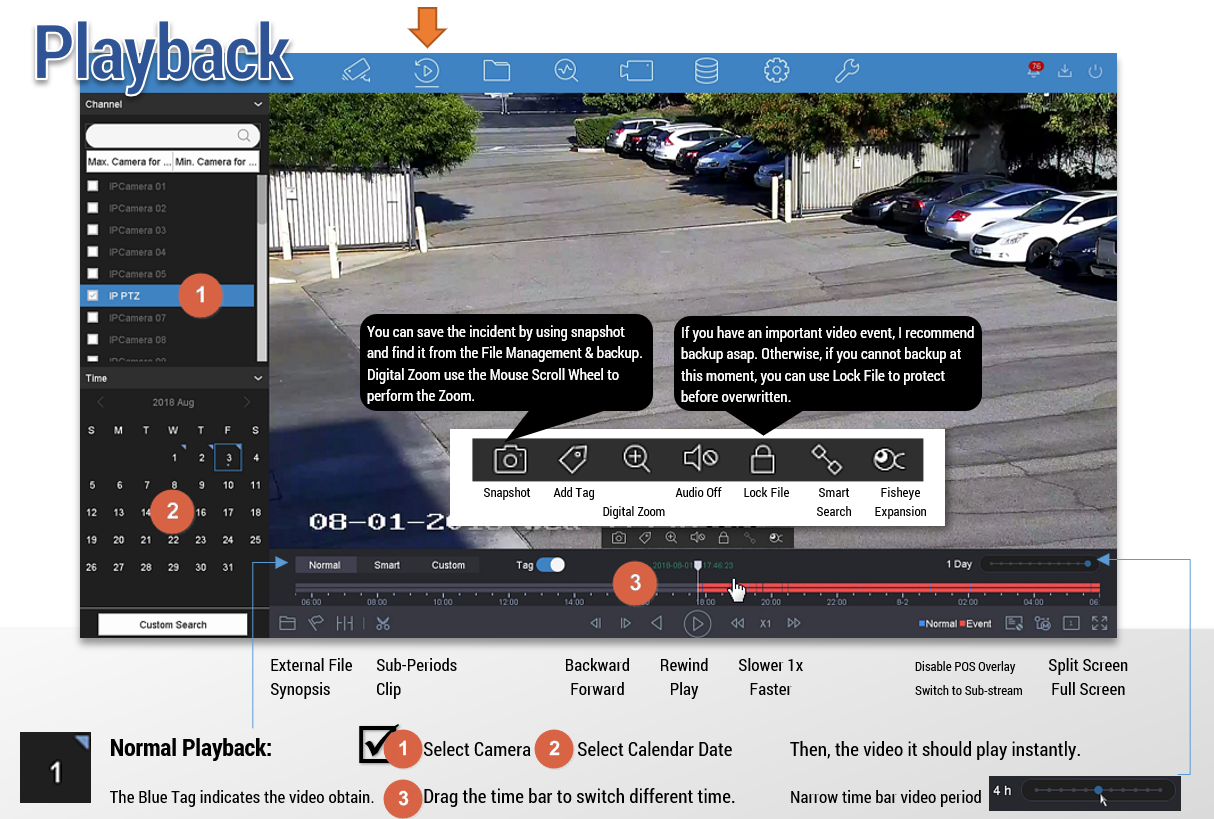
- Open Playback or Search and sign in if prompted.
- Select the camera covering the area you need. Start with one camera so the screen is easy to follow.
- Choose the date of the event.
- Select the time, or move along the timeline to just before the event.
- Press Play if playback has not started. Confirm the date and time shown in the video before reviewing it.
Make the search manageable. Write down the camera name and approximate time first. Begin a few minutes before the event, then narrow the time after you find the right activity.
Choose the instructions for your interface
Newer EUI-style interface
Open Playback, select a camera, then pick the date. In the 87 Series interface documented by LTS, marked calendar dates indicate available video. Drag the timeline to change the viewing time; the mouse wheel changes its scale. Blue timeline sections contain footage and red sections identify event footage in this interface.
Search is a separate way to locate files using criteria. For simply watching an earlier event, begin in Playback.
NVR 4.0 interface
Choose Playback from the main navigation. Check the camera or cameras in the list and select a calendar date. Use the lower toolbar and timeline to control playback. Begin with normal playback; smart-search filters can leave out footage you want to see.
Older interfaces
Right-click Live View and choose Playback, or use Menu → Playback. Choose the channel and date in the playback panel. The positions of the calendar and controls differ from newer screens.
Use the playback controls
- Play / Pause: watch normally or stop on a moment.
- Timeline: jump backward or forward to another recorded time.
- Speed: scan more quickly, then return to normal speed for detail.
- Reverse / frame controls: use these if your recorder and playback mode offer them.
Colors vary. Use your screen’s legend rather than assuming every LTS recorder uses identical colors. A gap in the timeline is not a section you can play.
If you cannot find the event
Check the camera, date, and selected time again. Clear event-only filters and try a nearby time. If footage is still missing, send CJSC the camera name, date, approximate time, and any on-screen message. Do not initialize a disk or change the recording setup while trying to locate existing footage.
Reference manuals
See the LTS 87 Series playback instructions, NVR 4.0 manual, and older NVR manual for model-specific details.