
This guide assumes CJSC has already configured NVMS V3 and your recorder on this Windows PC. It focuses on everyday viewing. If you are using the recorder’s attached monitor and mouse, use Using Your LTS NVR/DVR instead.
Open your cameras
- Launch NVMS V3 on your PC and sign in if requested.
- Open the main menu and select Main View.
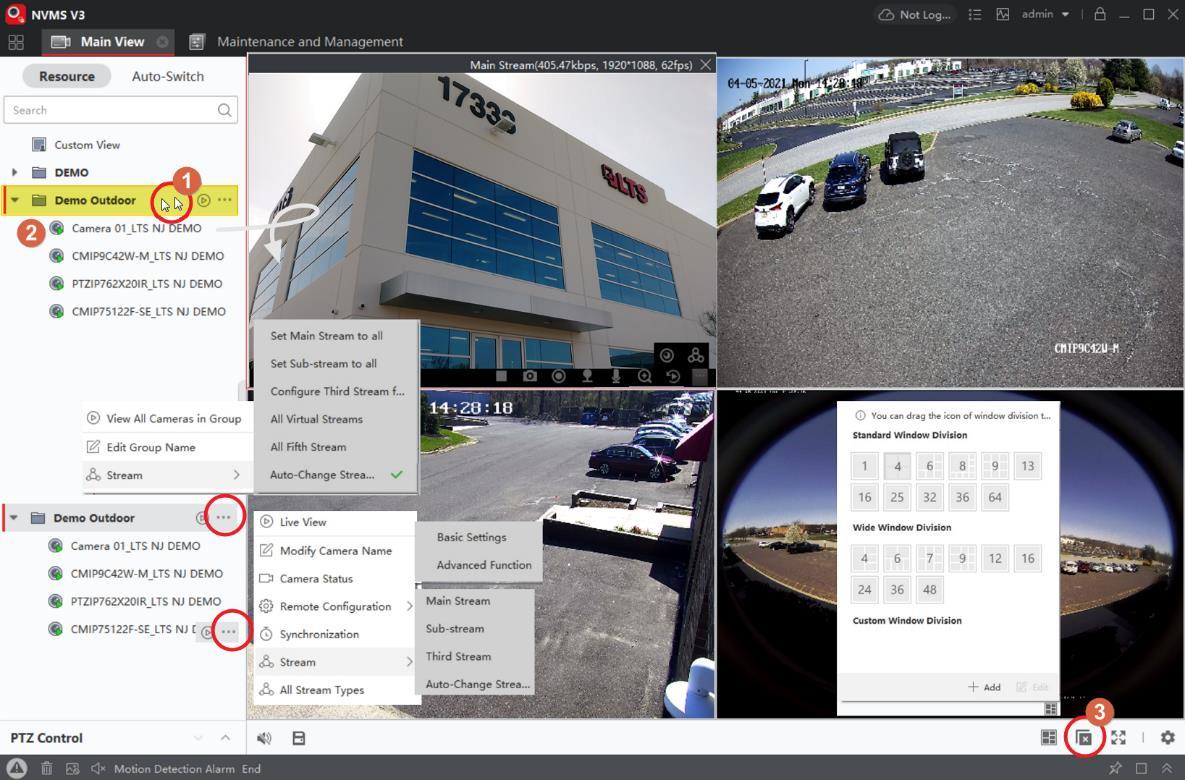
- Find your camera group in the device/camera list.
- Drag a camera into a viewing window. Double-clicking a group opens its cameras together.
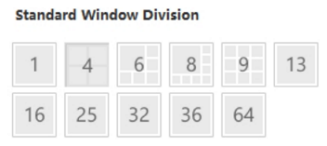
- Use Window Division to choose a layout, then arrange the cameras you need.
Main View is your place for current video. Start with a few cameras you recognize before opening a larger layout.
Understand the viewing controls
Move the pointer over a video window to reveal its toolbar. A right-click menu offers additional controls. Select the window you mean to control before using its buttons.
Main Stream and Sub Stream
Where your system offers a stream choice, Main Stream favors image detail; Sub Stream uses fewer resources for multi-camera viewing. Keep the setup CJSC provided unless you need help with a slow or unclear view.
Optional PTZ and extra monitors
PTZ controls apply only to cameras that support movement. Auxiliary views can place live pictures on another monitor. Neither feature is necessary for basic viewing or playback.
Switch to recorded video
Go to Main Menu → Remote Playback. Follow our recorded-video walkthrough to choose the time range and camera.
Seeing a setup screen instead? If there are no familiar cameras, stop before adding devices or changing connection details. Contact CJSC and tell us which computer you are using and what NVMS displays. Never include your password in a support request.
Before requesting help
Note whether the issue affects one camera or all cameras, whether it happens in live view or playback, and the wording of any error. Those details help us narrow down the problem without changing settings unnecessarily.
Reference
Navigation was checked against the LTS NVMS V3 Quick Operation Guide. This guide is for NVMS V3 on Windows, not the older NVMS7000 v2 application.