
This guide applies to the NVR 4.0 layout documented by LTS. Check your recorder’s interface before following the menu paths.
Common viewing tasks
- For an uncluttered picture, enter Live View on the Channel panel, then right-click the video or use the full-screen control at the lower right.
- If the camera toolbar covers the image, leave the mouse still; the documented interface hides it after about a minute.
- Find detection information under Alarm Information, in Basic or Smart Event.
- Camera naming is under Camera → Display → Image Settings.
- Rearrange live pictures by dragging them, or use System → Live View → View.
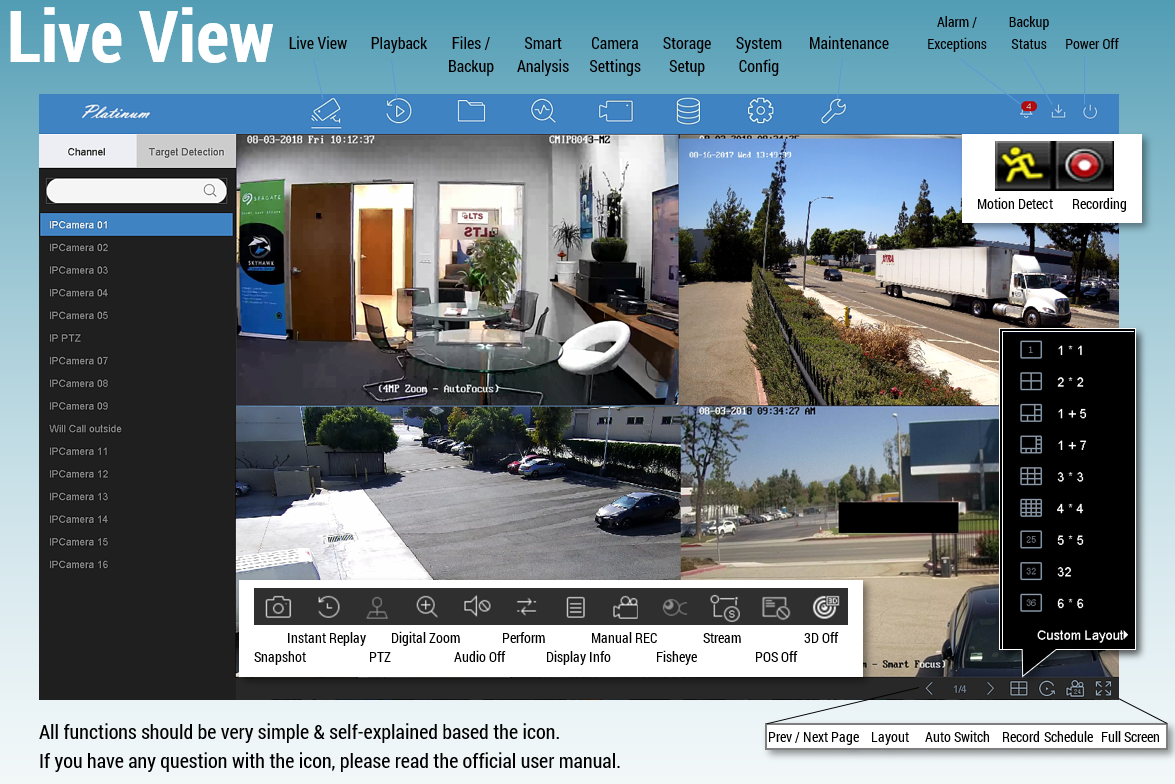
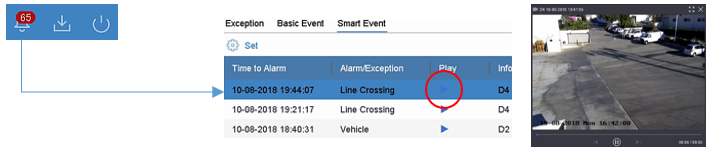
Changing the live-view arrangement does not renumber playback channels. Confirm the camera name when reviewing an event.
Source and version
Reconstructed in CJSC’s own wording from the archived LTS instructions. Menu names can differ between releases.