
A recorder plug-in may use its own save location rather than your browser’s usual Downloads folder.
Check the configured path
- Sign into the recorder through the supported client.
- Open Configuration → Local.
- Find the paths for exported video, recordings or pictures.
- Choose the appropriate folder, save, and test a small export.
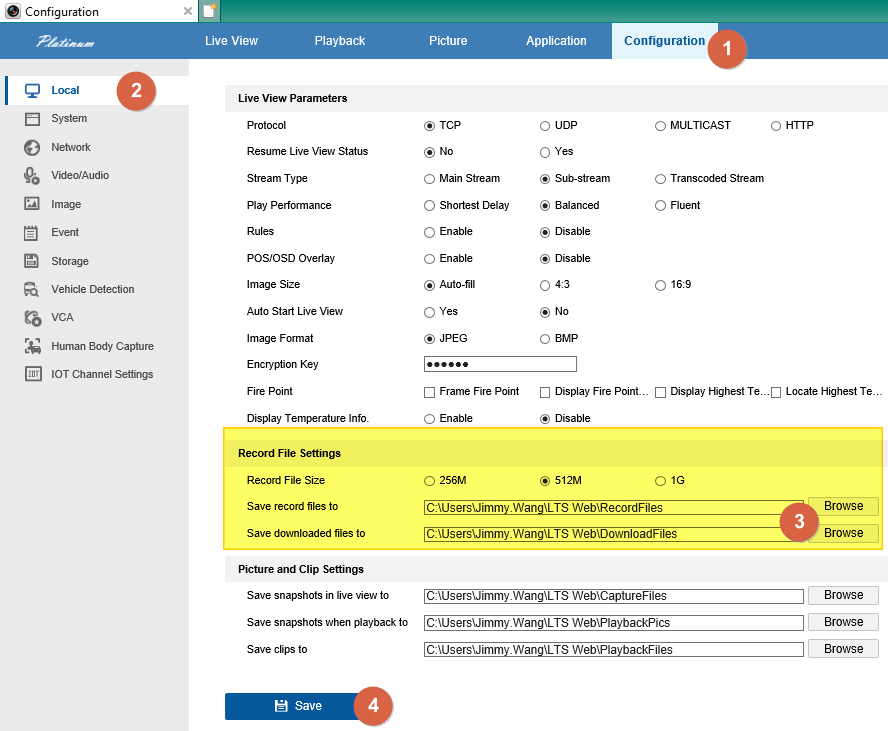
Older interfaces may call the section Local Configuration. Confirm that your Windows account can write to the selected folder.
If Local settings are missing
The old instructions depended on the browser plug-in. A missing Local panel can indicate a different or unsupported interface. Send CJSC the recorder model and a screenshot; do not change browser security zones to force it.
Sources and applicability
Written in CJSC’s own wording using archived LTS instructions. Follow the version noted above.