
NVMS has limits on the resources it can manage. Open the client’s Help menu to locate its resource information.
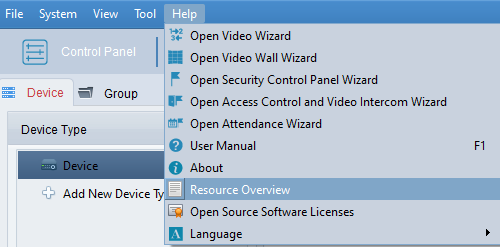
What to check
Compare the displayed usage with the limit for the resource you are adding. The recovered LTS note used 1,024 managed cameras as an example for that software generation; do not assume the same limit applies to every release.
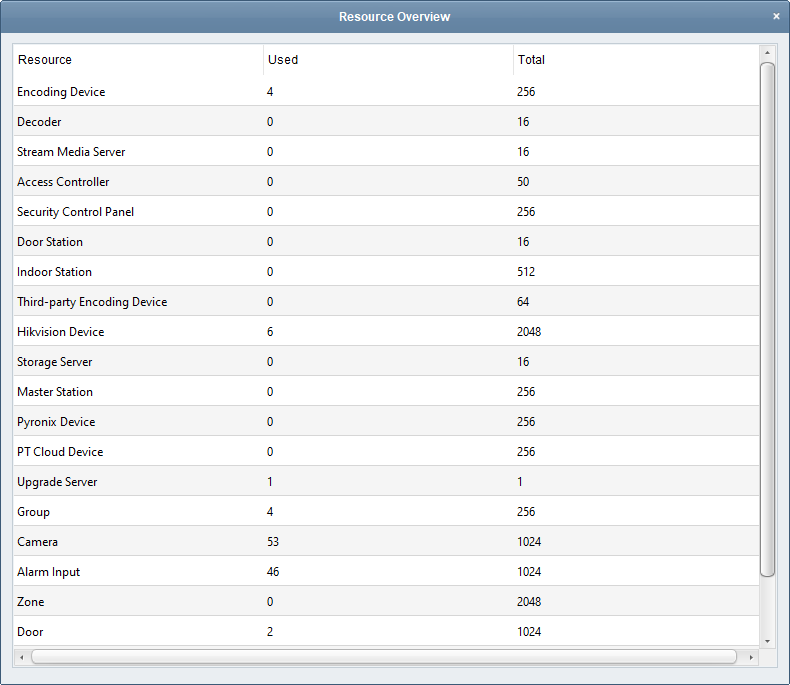
Before expanding an installation
Send CJSC the client version and a screenshot of the resource display. Managed-camera capacity and a computer’s ability to show many cameras smoothly are different questions.
Source and version
Reconstructed in CJSC’s own wording from the archived LTS instructions. Menu names can differ between releases.