
Enable automatic viewing
- Sign into the recorder in the supported browser interface.
- Open Configuration → Local.
- Set Auto Start Live View to Yes and save if required.
- Return to Live View and check that cameras start.
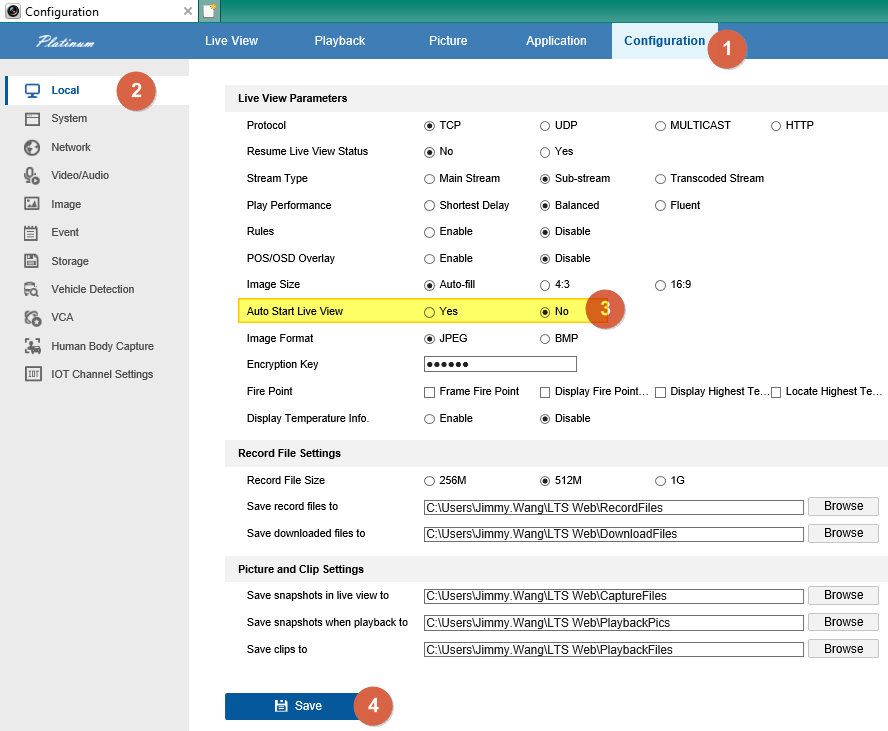
Starting many cameras together can overload a slow connection or computer. Keep automatic viewing off if you normally need only one camera or experience delays.
This option belongs to the legacy Local settings panel. If it is absent, ask CJSC which client is appropriate for your model.
Sources and applicability
Written in CJSC’s own wording using archived LTS instructions. Follow the version noted above.