
P2P and port forwarding are two ways to watch your cameras from outside your building. P2P needs no router changes: the camera or recorder connects out to the manufacturer’s service, and your phone finds it there. Port forwarding opens a door in your router that leads straight to the device. P2P is easier to set up. Port forwarding gives a direct connection but carries more exposure. For most New Jersey homes and small businesses, the safest choice is the one that avoids leaving a camera reachable by anyone on the internet.
TL;DR
- P2P: no router settings to change. The device makes an outbound connection to a vendor service, and your app connects through it by serial number or QR code.
- Port forwarding: you create a router rule that sends outside traffic to the camera or NVR. It is direct, but the device is reachable by anyone who finds the port.
- Risk: an exposed port is the bigger danger. P2P shifts the risk to the vendor’s service and to your account password.
- Either way: change default passwords, update firmware, turn off UPnP, and use two-step verification where the app offers it.
- Not sure? A professional installer can design remote access around your network and your camera brand.
Table of Contents
- What each method actually does
- P2P vs port forwarding at a glance
- Security: where each method can go wrong
- Which one fits your situation
- A safer setup checklist
- Our perspective
- Get remote viewing set up properly
- FAQ
- Sources
What each method actually does
Both methods solve the same problem. Your cameras sit on a private network behind your router, and the internet can’t reach them on its own. Remote viewing needs a path in.
How P2P remote access works
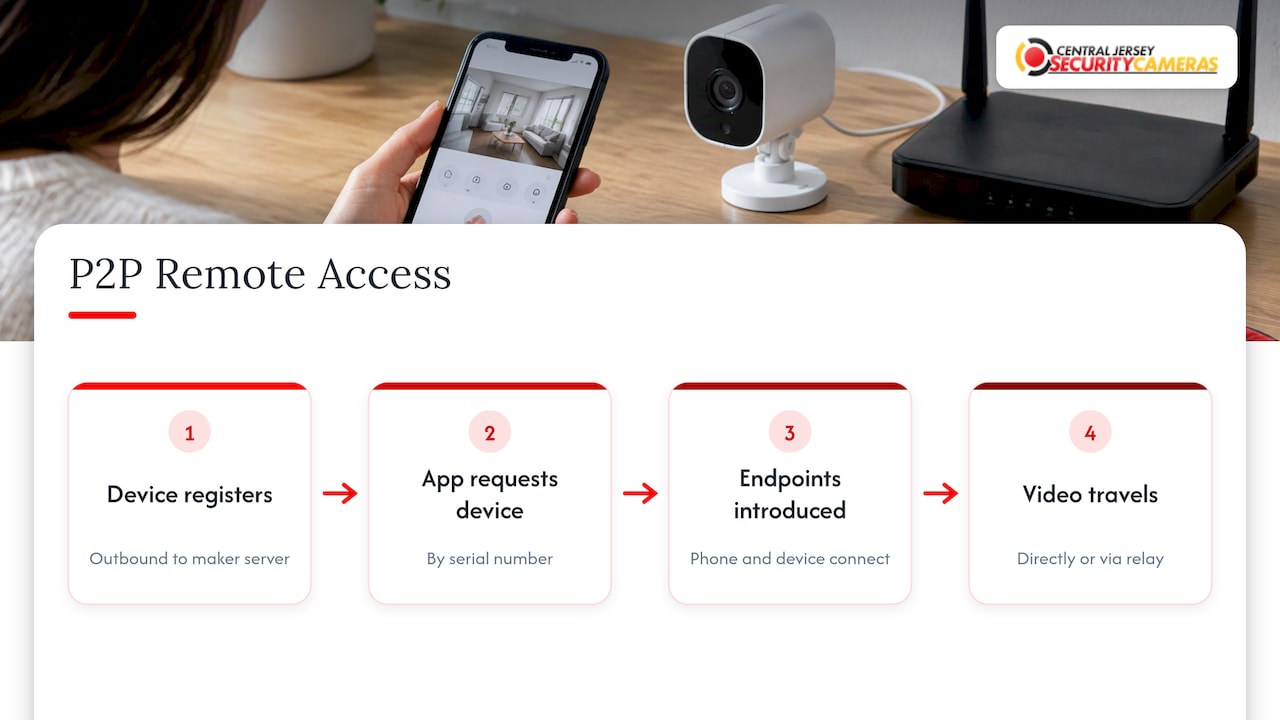
With P2P, you don’t open anything on your router. The camera or recorder registers with the manufacturer’s server through an outbound connection, the same kind your laptop makes when it loads a web page. Your phone app asks that server for the device, usually by serial number, and the two ends are introduced. Depending on your network, the video then flows directly between phone and device or through a relay server.
Manufacturer documentation describes it this way. INSTAR’s manual says that once P2P is activated, you connect with its app and don’t need to set up port forwarding in the router. The same page notes it is in most cases slower than a DDNS address.
Hikvision’s U.S. data sheet (published 2017) shows the trade-offs plainly. Its Hik-Connect P2P service works without port forwarding, while its DDNS option requires it. The same sheet lists P2P limits of 5 minutes of continuous live view per camera and one simultaneous playback stream. DDNS allowed unlimited continuous viewing and four playback streams. Limits like these change with firmware and app versions, so check your manufacturer’s current documentation.
How port forwarding works
Port forwarding is a rule in your router. It says that anything arriving at your public IP address on a certain port goes to a specific device inside, such as an NVR. Setup usually needs three things:
- A public IP address for your internet connection.
- A fixed or reserved internal IP for the camera or recorder.
- A rule that maps an outside port to that internal address and port.
If your provider changes your public IP, you also need a DDNS name so you can still find your system. A typical NVR guide shows the pattern. The Luma NVR quick-start guide lists example ports such as 80 for browser access and 8000 for its mobile app. It also says that if cameras connect directly to the NVR and you want each one remotely, each needs its own forwarded port.
P2P vs port forwarding at a glance
| Factor | P2P | Port forwarding |
|---|---|---|
| Router changes | None | Rule per device or port, plus a fixed internal IP |
| Public IP needed | No | Yes, and DDNS if it changes |
| Depends on vendor cloud | Yes, for connection setup | No |
| Exposure to the internet | No open inbound port on your router | Open port reachable by anyone |
| Typical speed | Can be slower, may use a relay | Direct, usually lower latency |
| Setup difficulty | Low: scan a code, sign in | Higher: router access and network knowledge |
| Main risk | Vendor service security and account takeover | Scanners, default passwords, unpatched firmware |
| Works in strict networks | May fail on some | Fails if your ISP blocks it or shares one address |
The table shows why the question has no single answer. Port forwarding gives you control and a direct path. P2P gives you convenience and a smaller footprint on your router. The right pick depends on the system and the network.
Security: where each method can go wrong
The risk with port forwarding
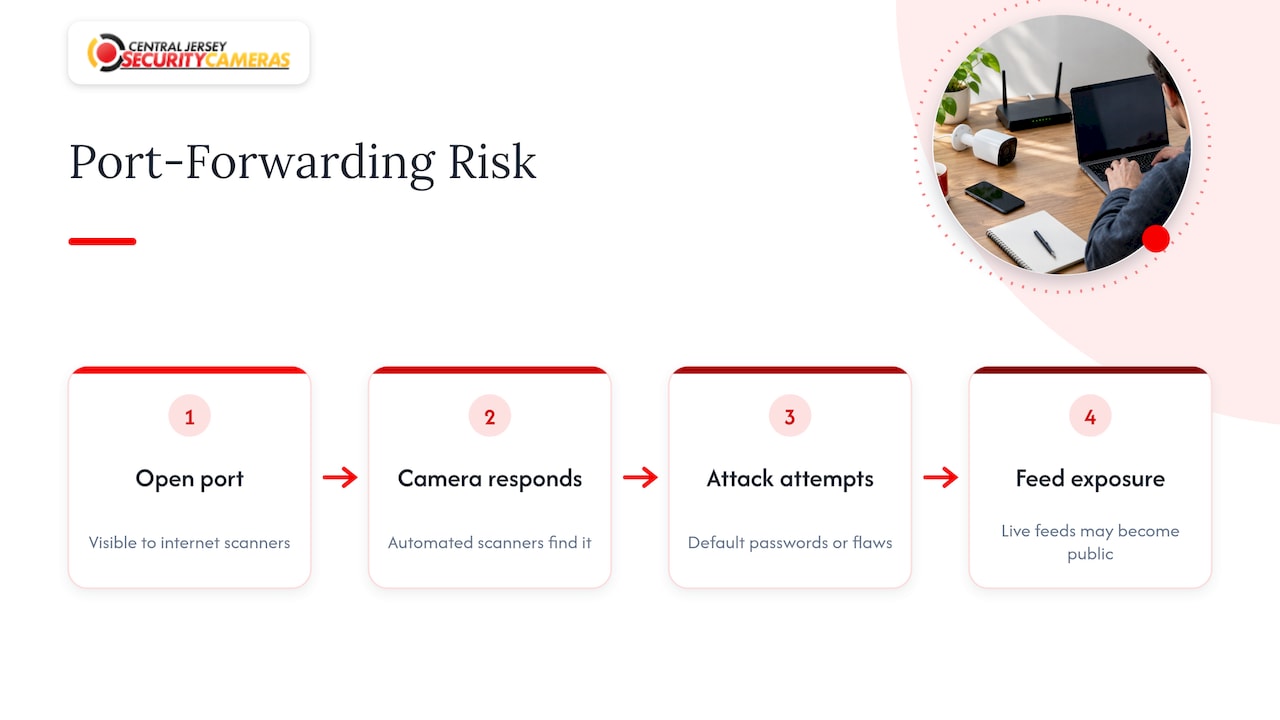
An open port is visible to anyone who scans for it, and automated scanners do exactly that. Once a camera answers, attackers try default passwords and known firmware flaws. One security vendor’s analysis of a 2026 campaign that compromised 14,530 cameras in 35 days points to devices reachable through open firewall ports, commonly set up by manual port forwarding. Treat that as one company’s analysis, but it matches the general pattern.
There is also a U.S. regulatory example. In its 2013 complaint against camera maker TRENDnet, the FTC described a flaw that made live feeds publicly accessible, with links to nearly 700 cameras posted online. The lesson for installers and owners is that a camera reachable from the internet has to be locked down properly.
Hanwha Vision’s support portal puts it bluntly. It recommends that only an experienced network technician make port forwarding changes, because the process opens ports to the internet.
The risk with P2P
P2P avoids the open inbound port, but it asks you to trust something else: the manufacturer’s service. The security of your video access depends on how that service finds devices, authenticates sessions, encrypts streams and handles account recovery. A strong vendor makes this a good trade. A weak one does not.
CHeKT’s CEO David Erickson has noted that P2P and relay connections are run on the manufacturer’s cloud and aren’t typically regulated. His suggested checks include whether the maker has a history of cyber incidents and whether independent security experts trust it. Those are fair questions to ask about any brand before you buy.
There is also a practical dependency. If the vendor’s servers go down, or a service is discontinued, P2P viewing stops. Your local recording keeps working, but your remote view does not.
Security basics that apply to both
Whichever method you use, these steps do most of the work:
- Change every default password and username. CISA’s home network guidance warns that leaving factory defaults in place gives attackers openings, and tells owners to change default configurations after installation.
- Keep firmware and the viewing app updated. Known flaws in old firmware are the easiest way in.
- Turn off UPnP on the router unless you have a specific reason for it. It can open ports without you knowing. Hanwha’s guidance notes that its Quick Connect feature depends on UPnP being enabled, so know which of your features rely on it.
- Use long, unique passwords and two-step verification on the vendor account that controls P2P.
- Close ports you don’t use. CISA’s framework guidance for commercial facilities includes the control that unused ports should be locked and secured.
- Limit who has access. The same guidance stresses authentication and least-privilege permissions for remote access. Give each person only the cameras and rights they need.
The same habits protect other connected devices on your property. Smart locks and door access follow the same rules of strong authentication, updates and limited permissions, and a guide on protecting connected access devices covers that side in practice.
Which one fits your situation
Choose P2P when
- You want a quick setup and don’t manage your router.
- Your internet provider shares one public address among many customers (carrier-grade NAT), which makes port forwarding impossible.
- You mostly need live view and playback on a phone, not a browser or third-party software.
- You use a manufacturer with a solid security record, and you will turn on two-step verification.
If your app connects by serial number, you can usually skip port forwarding altogether.
Choose port forwarding when
- You need browser access from outside the network or have software that requires a direct connection.
- You need unlimited simultaneous streams that a P2P service limits.
- Your network blocks P2P connections.
- A technician has locked down the device first: strong credentials, current firmware, and only the ports that are required.
Even then, a direct path from the internet to your recorder should be a deliberate decision. Many integrators prefer a more controlled route, a VPN into the network. A router vendor’s own camera guide states that the intent is to reach the NVR over VPN rather than over the WAN. With a VPN, nothing about the camera is exposed. The user authenticates first, then reaches the device as if they were on the local network.
Businesses have extra things to weigh
Offices, warehouses and retail sites often have firewalls, managed switches and several recorders. Corporate networks and strict ISP equipment can break P2P connections, while port forwarding on a business network exposes systems that may sit near payment or customer data. Separating cameras onto their own network segment is a common safeguard. Our commercial security installations are planned with the site’s network in mind.
A safer setup checklist
Whether you set it up yourself or hire it out, this is the order we would follow:
- Map your network. Find out what your router is, whether you have a public IP, and whether cameras share a network with computers. Our guide on how home networks support security cameras explains the basics.
- Change default credentials on the recorder, every camera and the router.
- Update firmware on all devices before enabling any remote access.
- Turn off UPnP on the router.
- Pick the access method. P2P with two-step verification for simple phone viewing. A VPN or a professionally configured setup if you need more control.
- If a port must be forwarded, forward only the ports required, use a reserved internal IP, and avoid default port numbers where the device allows it.
- Test from outside your network, for example on cellular data, and confirm that each person has only the access they need.
- Recheck after updates. Firmware updates and router changes can reset settings.
For more on viewing from your phone or computer, see our overview of viewing security cameras remotely.
Our perspective
Most remote access problems we see come from a mismatch between the method and the property. A homeowner who just wants to check the driveway from work does not need the same setup as a warehouse with several recorders and staff who log in from different places.
That is why we design each system around the property. During a free on-site evaluation, we look at your network, your camera types and who needs to see what, then set up remote viewing that fits. We would rather build an access path with proper passwords, current firmware and limited permissions than leave you with a default setup.
Our work covers CCTV and IP camera systems, 4K cameras, PTZ cameras, NVRs and ongoing service and support. Remote viewing is designed in from the start, and support stays local if something changes later, such as a new router or internet provider.
Tom
Get remote viewing set up properly
If you would rather not open router settings or sort out vendor accounts yourself, we handle it from design to installation. We install and support camera systems for homes and businesses across Ocean, Monmouth, Middlesex, Mercer and Burlington counties and nearby areas. Our published one-time installation fee is $99, listed on our security camera installation page.
We also offer alarm monitoring plans at $24.95 to $29.95 per month, shown on our alarm monitoring pricing page. For homes, start with home security installation.
FAQ
Does P2P require port forwarding?
No. With P2P, the camera or recorder connects outbound to the manufacturer’s server, so you don’t change router settings. Hikvision’s data sheet states that its P2P service works without port forwarding. A vendor server is still involved in setting up the connection.
Is port forwarding safe for security cameras?
It can be, but it carries more risk because the device is reachable from the internet. Scanners look for open ports, and default passwords or old firmware make cameras easy targets. If you use it, have an experienced technician set it up, change defaults and keep firmware current. A VPN is often the safer alternative.
Is P2P slower than port forwarding?
Often, yes. A direct connection through a forwarded port usually has lower latency, while P2P may route through a relay. INSTAR’s documentation says P2P is in most cases slower than DDNS access. Some P2P services also limit live view time or simultaneous streams.
Can I use P2P and still be secure?
Yes, if you protect the account and the device. Use a long, unique password, turn on two-step verification where offered, and keep the app and firmware updated. CISA advises changing default settings and credentials. Choosing a manufacturer with a good security record also matters.
What if my internet provider blocks port forwarding?
Some providers put many customers behind one shared public address, and port forwarding can’t work there. P2P is usually the practical fix in that case, or a VPN service that connects outbound. An installer can check your connection and recommend what works.
Sources
- INSTAR Wiki: Network Menu, P2P
- Hikvision USA: Hik-Connect data sheet
- Luma NVR web interface quick start guide
- CHeKT: 14,530 cameras compromised in 35 days
- FTC complaint against TRENDnet (2013)
- Hanwha Vision support: configuring an NVR/DVR for remote connections
- CHeKT: Secure Video Monitoring
- CISA: Home Network Security
- CISA: Commercial Facilities Sector Cybersecurity Framework Implementation Guidance
- Teltonika Networks: Camera access from VPN
- PerfectHost: connected locks and access security