
This describes an existing legacy Mac installation. The old LTS article distinguishes 32-bit and 64-bit clients; it does not establish compatibility with today’s macOS. Check the appropriate client with CJSC before installing or upgrading.
Find a recording
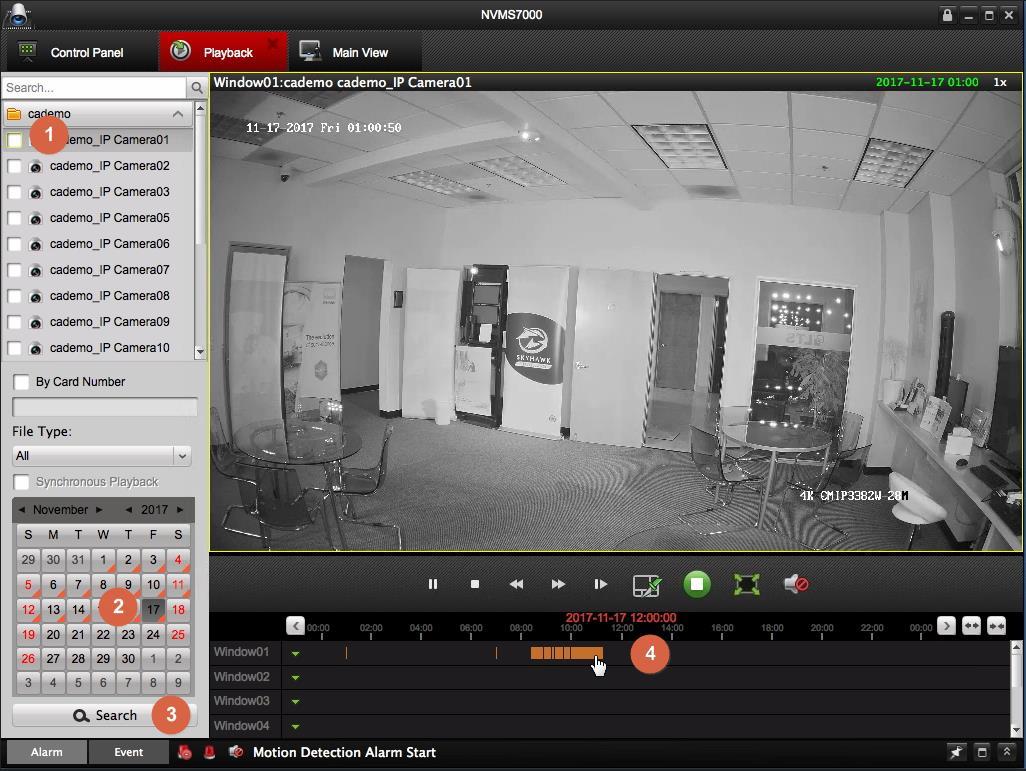
- Open Playback, choose a camera and date, then search.
- Double-click the timeline to move to another time.
- Right-click the picture for playback options. With a single-button mouse, use Control-click.
Save and reopen a clip
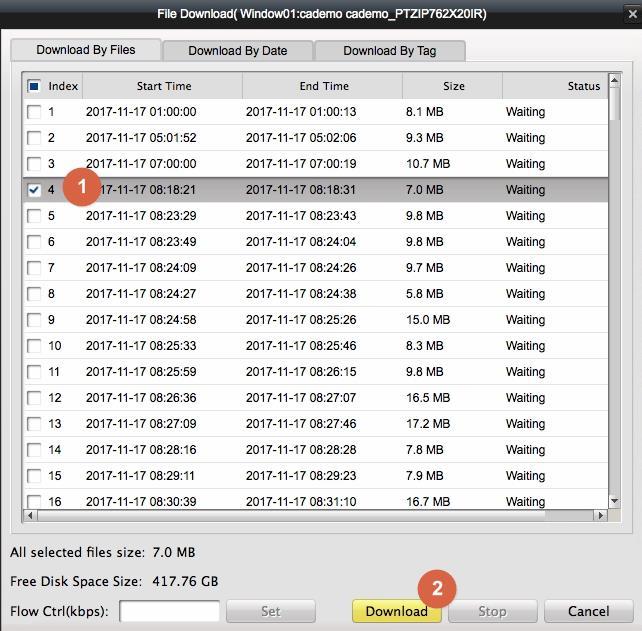
- Choose Download from the picture’s context menu.
- Select the required file and start the download.
- Wait for completion and verify the copy.
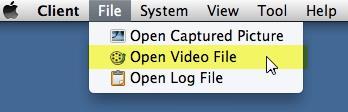
- To reopen a saved video, use File → Open Video File.
Keep existing device details before any software replacement. Ask CJSC for migration help if the app no longer opens.
Sources and applicability
Written in CJSC’s own wording using archived LTS instructions and LTS backup guide, Mac playback section. Follow the version noted above.