
Use this only where CJSC has confirmed that the browser interface is supported and functioning.
Find and download the files
- Open Playback and locate the event.
- Select the download control and choose Download by File.
- Choose the camera and the beginning and end of the search period.
- Run the search, select the required files, and start the download.
- Use Open Folder after completion.
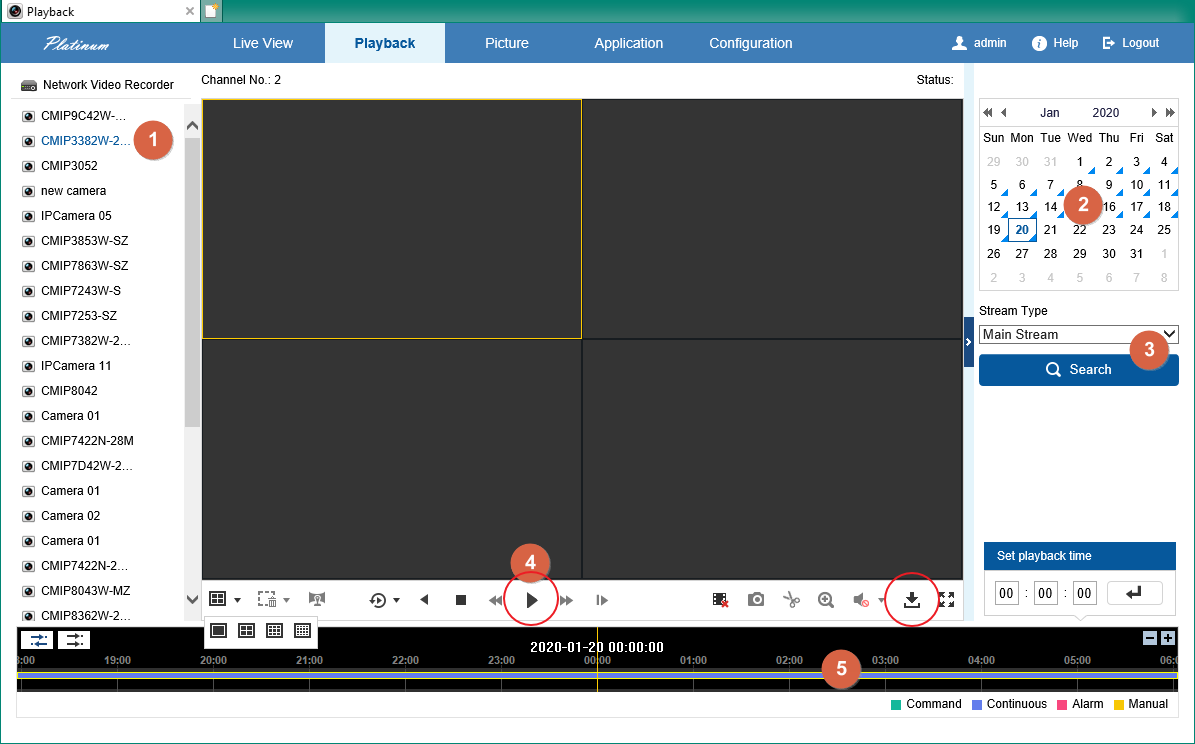
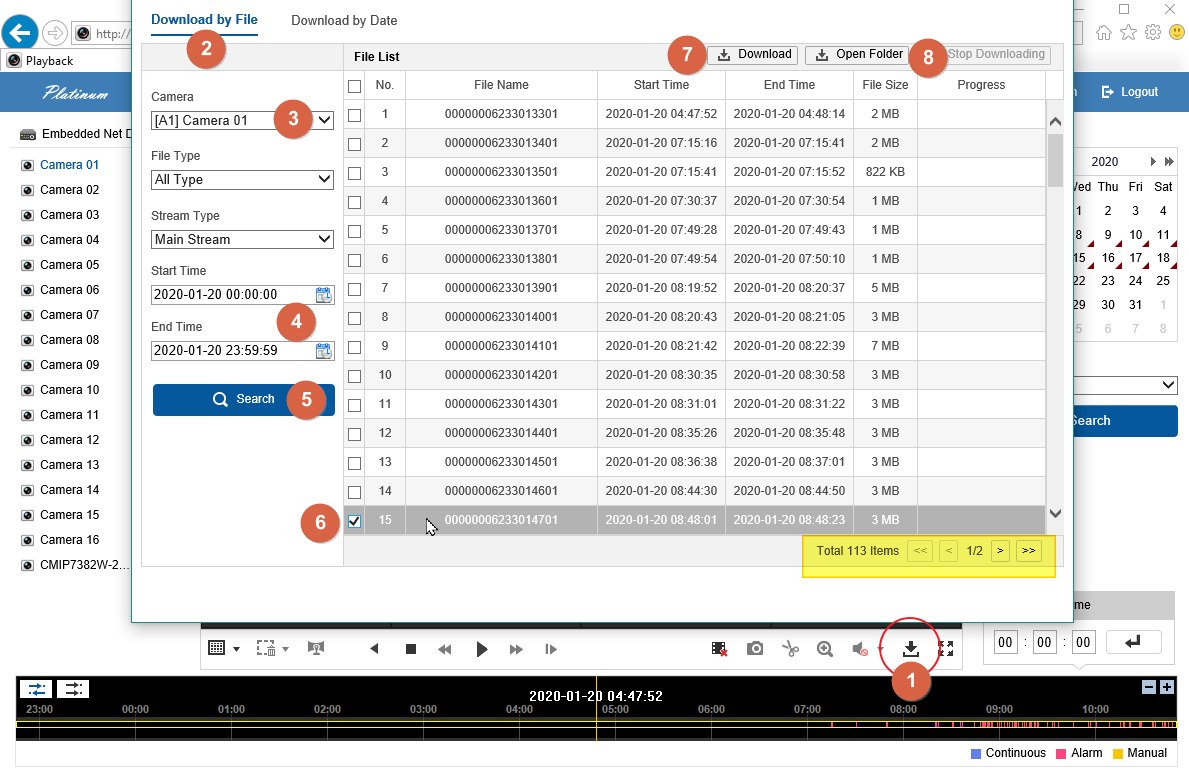
Some models also offer download by date/time for a narrower interval.
Verify the copy
Open the exported video and check its camera and timestamp before relying on it. If saving is blocked, ask CJSC for a supported export method rather than weakening browser security settings.
Sources and applicability
Written in CJSC’s own wording using archived LTS instructions. Follow the version noted above.