
VCA overlays show the areas or lines used by video analytics. They can be distracting during routine viewing.
Hide the client overlay
- Stop the live view.
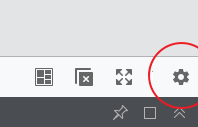
- Open settings using the gear control.
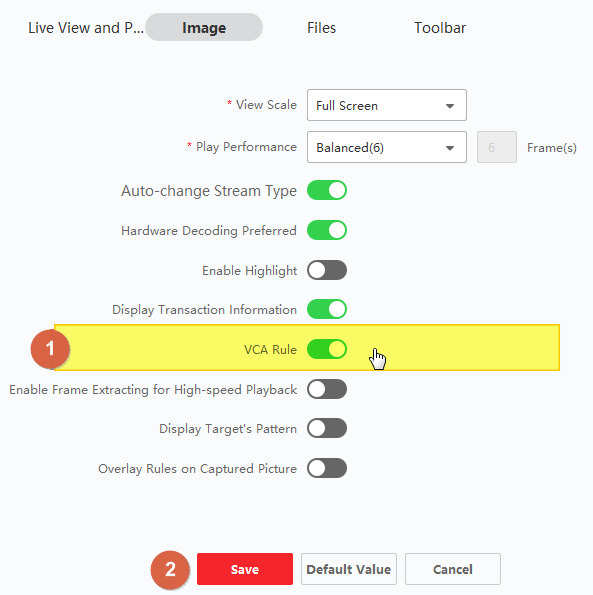
- Under Image, switch VCA Rule off.
- Start the live picture again and check the result.
This guide concerns the client display overlay. Do not disable a recorder’s detection rule merely to remove a line from the screen.
If the line remains, send CJSC a screenshot and identify whether you are looking at NVMS or the recorder’s attached monitor. Their display settings may differ.
Source and version
Reconstructed in CJSC’s own wording from the archived LTS instructions. Menu names can differ between releases.