
Have the cloud account assigned to your installation ready. The recorder must already be associated with an account you are authorized to use.
Sign in and view
- Open NVMS V3.
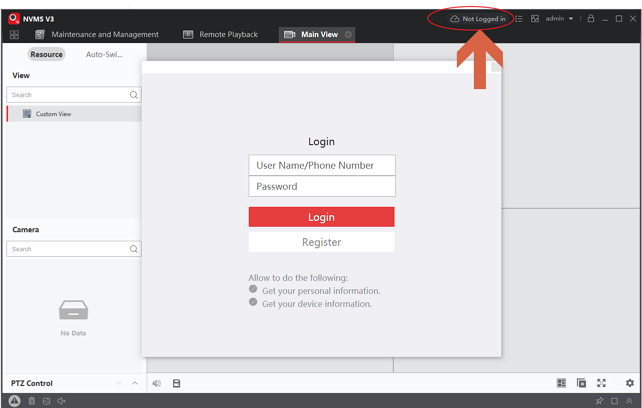
- Select the cloud icon near the upper-right corner.
- Sign in with the appropriate cloud account.
- Drag a camera from the available list into the viewing area.
Sign out
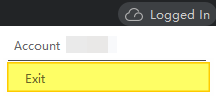
Open the PT Cloud control and choose its exit/logout option when finished on a shared computer.
If your recorder is absent, check that you used the correct account. Ask CJSC to review ownership or sharing rather than creating another account or trying to rebind the recorder.
Source and version
Reconstructed in CJSC’s own wording from the archived LTS instructions. Menu names can differ between releases.