Desktop Software / LTS Security / NVMS

Fixing Cropped or Enlarged NVMS Pictures on Windows

Try the documented Windows DPI compatibility adjustment when NVMS V2 or V3 pictures appear cropped.

A Windows scaling mismatch can cause an enlarged, cropped or partly blank NVMS display. This is one possible cause, not a diagnosis of every black-screen problem.

Try the documented adjustment

  1. Close NVMS completely.
  2. Right-click its desktop shortcut and open Properties.
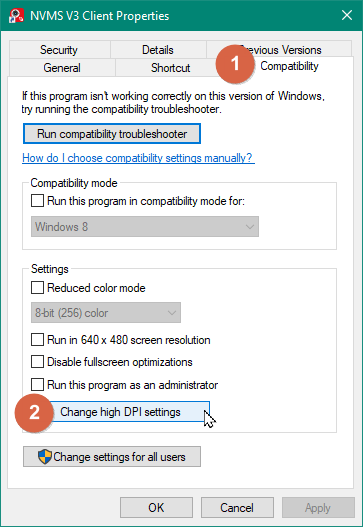
  3. Under Compatibility, open Change high DPI settings.
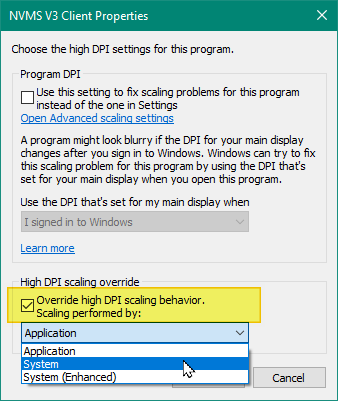
  4. Enable the high-DPI scaling override and select System.
  5. Confirm both dialogs and reopen the client.
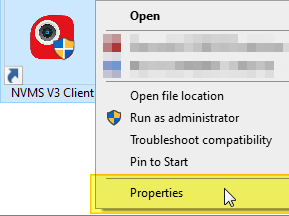
Windows: open Properties from the NVMS shortcut.
Windows: open Properties from the NVMS shortcut. Screenshot: LTS. Click the image to enlarge.
NVMS shortcut Properties: Compatibility and Change high DPI settings.
NVMS shortcut Properties: Compatibility and Change high DPI settings. Screenshot: LTS. Click the image to enlarge.
Windows high-DPI override with System selected.
Windows high-DPI override with System selected. Screenshot: LTS. Click the image to enlarge.

Check the camera picture and controls. If the result is worse, close the client and undo the override. Send CJSC your Windows version, display scaling and client version if the problem remains.

Source and version

Reconstructed in CJSC’s own wording from the archived LTS instructions. Menu names can differ between releases.

Need More Help?

Send us a technical support request for one-on-one help with your system.